
You’ve installed your doorbell camera for security, but without proper privacy settings, you’re potentially exposing yourself to data breaches, unauthorized access, and legal issues with neighbors. Your camera’s default configurations aren’t designed with maximum privacy in mind—they’re set for convenience. There’s a critical gap between installation and true security that most homeowners overlook, leaving their footage vulnerable to hackers and creating unnecessary privacy conflicts that could’ve been easily prevented.
Enable Two-Factor Authentication for Enhanced Account Protection
While password protection alone might seem sufficient, enabling two-factor authentication on your Ring doorbell camera account creates an essential second barrier against unauthorized access.
You’ll receive verification codes via text or email that must be entered within 60 seconds of receipt, preventing hackers from infiltrating your Ring account even if they’ve obtained your password.
To activate Two-Factor Authentication, navigate to your Ring app settings and follow the prompts. This security feature works best when you’re using unique, complex passwords alongside it.
Combining Two-Factor Authentication with strong, unique passwords creates the most effective defense against Ring account breaches.
The combination dramatically reduces your risk of account breaches.
Don’t forget to regularly update your security settings, including Two-Factor Authentication, as cyber threats continue evolving.
This proactive approach guarantees your doorbell camera remains protected against unauthorized viewers.
Create Strong, Unique Passwords for Your Doorbell Camera Account
Your doorbell camera account’s security hinges on creating a password that’s both complex and unique to this specific device.
You’ll need to meet specific complexity requirements while steering clear of common mistakes that make passwords vulnerable to hackers.
Regular password updates will keep your account secure over time, but knowing when and how to change them makes all the difference.
Password Complexity Requirements
Because doorbell cameras store sensitive footage of your home’s entrance and visitors, securing your account with a robust password becomes paramount to protecting your privacy. Meeting password complexity requirements isn’t optional—it’s essential.
You’ll need at least 12 characters combining uppercase letters, lowercase letters, numbers, and special characters. Don’t use predictable information like birthdays, pet names, or common words that hackers easily guess.
Your doorbell camera deserves a unique password that you don’t use anywhere else. Reusing passwords across platforms creates vulnerabilities that compromise multiple accounts simultaneously.
Consider using a password manager to generate and store complex credentials automatically. Update your password every three to six months, and always enable two-factor authentication for additional protection beyond your strong password foundation.
Avoiding Common Mistakes
Even with the best intentions, many users sabotage their doorbell camera security by falling into predictable password traps. Don’t let simple oversights compromise your account protection.
| Common Mistake | Better Approach |
|---|---|
| Using “password123” or similar | Mix uppercase, lowercase, numbers, symbols |
| Including birthdays or personal info | Choose random, unrelated combinations |
| Reusing same password everywhere | Create unique password for each account |
| Never updating credentials | Change password every few months |
You’re particularly vulnerable when cybercriminals can easily guess your credentials through social media research or common password lists. A password manager eliminates the hassle of remembering multiple complex passwords while ensuring each account stays secure. After security incidents, immediately update your doorbell camera password to prevent unauthorized access to your home’s surveillance system.
Regular Password Updates
The cornerstone of doorbell camera security lies in establishing a robust password update routine that keeps hackers at bay. You should change your account password every 3-6 months to minimize unauthorized access risks.
Create passwords that are at least 12 characters long, combining uppercase letters, lowercase letters, numbers, and special symbols for maximum protection.
Don’t reuse passwords across multiple accounts—a single breach could compromise all your devices. Use a password manager to generate and store complex passwords, making it easier to maintain unique credentials for each account.
Regular password updates become essential if you suspect unauthorized access or experience security incidents. This proactive approach guarantees your doorbell camera remains secure against evolving threats.
Configure Privacy Zones to Block Sensitive Areas From Recording
While doorbell cameras provide excellent home security, you’ll want to guarantee they don’t inadvertently record areas that compromise your neighbors’ privacy or capture sensitive spaces around your property.
Configure privacy zones through your Ring app’s privacy settings to customize recorded areas. Simply drag and resize designated zones on your camera’s field of view to exclude neighbors’ properties or other sensitive locations from recording.
Once you’ve established these zones, save your settings to prevent footage capture in those specific areas. This approach maintains your home’s security while respecting community privacy.
Remember to periodically review and adjust your privacy zones, especially after yard changes or home modifications that might affect your camera’s view. Effective privacy zone usage strikes the perfect balance between protection and consideration.
Manage Shared User Access and Permissions
Managing who’s access to your doorbell camera requires careful oversight of shared user permissions within your Ring app.
You’ll need to regularly review these settings to maintain control over your privacy.
To manage access, open your Ring app and navigate to Settings, then select Shared Access. Here you can review current permissions and adjust who’s authorized to view your camera’s live feed and recordings.
Remove unauthorized users by selecting them and choosing delete from this section.
Check for unfamiliar devices registered with your Ring account periodically. The settings include an option to remove all signed-in devices except your current one, providing enhanced security.
Update user access permissions regularly to guarantee only trusted individuals can access your doorbell camera’s footage and maintain your privacy standards.
Choose Secure Video Storage Options: Cloud Vs Local
When selecting video storage for your doorbell camera, you’ll face a crucial decision between cloud-based and local storage options that directly impacts your privacy and security.
| Feature | Cloud Storage | Local Storage |
|---|---|---|
| Security | Encrypted at rest and in transit, but vulnerable to hacking without strong passwords | More secure with limited online exposure |
| Accessibility | Easy remote access from anywhere | Requires physical device access |
| Convenience | High – view footage instantly | Lower – manual retrieval needed |
Cloud storage offers convenience but requires proper security measures like two-factor authentication. Local storage using MicroSD cards provides enhanced security by keeping footage offline. Many cameras support both options, letting you combine cloud accessibility with local backup security for ideal protection.
Set Up Motion Detection Sensitivity and Alert Preferences
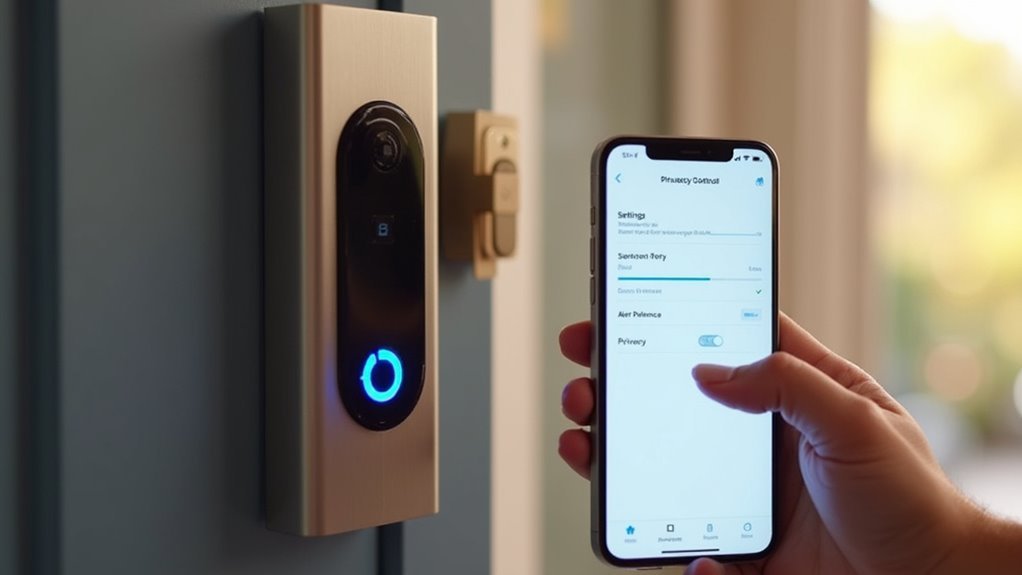
You’ll want to fine-tune your doorbell camera’s motion detection to balance security coverage with privacy concerns.
Start by adjusting sensitivity levels to capture relevant movement while filtering out false triggers like swaying branches or passing vehicles.
Next, customize your alert types and set up detection schedules that align with your daily routines and privacy preferences.
Adjust Motion Sensitivity Levels
Three key factors determine how effectively your Ring doorbell camera detects motion: sensitivity level, motion zones, and alert preferences.
You’ll need to access motion settings in the Ring app to customize these sensitivity levels, controlling how responsive your camera is to movement within its field of view.
Balance is essential when adjusting motion sensitivity. Setting it too high triggers frequent alerts from passing vehicles or small animals, while too low causes you to miss important activity.
Use the “Motion Zones” feature to specify particular areas you want monitored, helping protect your privacy while reducing unnecessary notifications.
After making adjustments, test your motion detection settings to confirm they’re effectively capturing relevant activity while maintaining your desired privacy level.
Customize Alert Notification Types
How do you want to receive alerts when your doorbell camera detects motion? Your alert preferences determine how quickly you’ll respond to potential security events.
Configure your doorbell app to send notifications through push alerts, emails, or text messages based on your lifestyle and monitoring needs.
Enable “People Only” mode if your camera offers this feature. This intelligent filtering reduces unnecessary alerts from pets, wildlife, or passing vehicles while focusing on human activity that matters most for security.
Set specific time frames for motion alerts to avoid nighttime disruptions or daytime overload. Schedule notifications only during hours when monitoring is essential.
Regularly review and update these settings, especially after environmental changes around your home, to maintain peak notification accuracy and guarantee your security system works effectively.
Schedule Detection Time Zones
Motion detection schedules act like a security guard’s shift rotation, determining exactly when your doorbell camera stays alert and when it rests.
You’ll find schedule detection time zones within your camera’s privacy settings, allowing you to customize active recording periods that match your daily routine.
Set your camera to activate during work hours when you’re away, then disable detection during evening family time or late-night hours to prevent unnecessary alerts. This targeted approach reduces notifications from regular household activities while maintaining security when it matters most.
You can create multiple time zones for weekdays versus weekends, adapting to different schedules.
Configure separate settings for motion sensitivity and alert types within each scheduled period, ensuring your doorbell camera provides peak protection without overwhelming you with irrelevant notifications throughout the day.
Control Who Can View Your Live Video Feed
When you’re managing your doorbell camera’s privacy, controlling who can view your live video feed stands as one of your most critical security measures.
You’ll want to actively manage who’s access to your Ring device to maintain complete control over your video footage.
Follow these essential steps to secure your live video feed:
- Navigate to “Shared Access” settings in the Ring app to manage authorized users and their viewing permissions.
- Revoke access immediately for any previously authorized users you no longer trust or recognize.
- Enable two-step verification to require verification codes for new logins, preventing unauthorized account access.
- Create privacy zones within your app settings to limit camera view and prevent recording in sensitive areas.
Regular monitoring guarantees only trusted individuals can access your live feed.
Adjust Audio Recording Settings and Two-Way Communication Features
Two essential features you’ll need to configure are your doorbell camera’s audio recording settings and two-way communication capabilities. Access your Ring app to enable or disable sound recording for your doorbell camera, giving you complete control over what’s captured.
The Two-Way Audio feature lets you speak directly with visitors through the app, adding security and convenience to your home protection.
Consider that audio recording helps capture important conversations during security events, but weigh this against privacy concerns. Regularly customize these settings to match your specific privacy preferences and security requirements. Only record what’s truly necessary for your safety.
Explore the app’s notification settings to effectively manage alerts for audio recordings and two-way communication, maintaining both security and privacy.
Review and Delete Stored Video Footage Regularly
Since your doorbell camera continuously records activity around your home, you’ll accumulate significant amounts of video footage that requires regular management.
Taking control of your stored video recordings protects your privacy and prevents unauthorized access to sensitive information.
Managing your video storage proactively safeguards personal privacy and keeps sensitive household data secure from potential breaches.
Most doorbell cameras include built-in features that make it easy to delete unwanted footage.
Here’s how to manage your recordings effectively:
- Schedule weekly reviews of stored footage to identify videos you no longer need
- Delete outdated recordings promptly to minimize privacy risks and free up storage space
- Set reminders to check your footage regularly, preventing accumulation of irrelevant videos
- Monitor storage capacity since outdoor cameras typically hold 8 GB for approximately two months before overwriting
Regular maintenance strengthens your overall home security strategy while protecting your family’s privacy.
Update Device Firmware and Software for Security Patches
You should regularly check for firmware and software updates through your doorbell camera’s app to protect against the latest security threats.
Enable automatic updates whenever possible so your device receives critical security patches without requiring manual intervention.
Outdated firmware leaves your camera vulnerable to cyberattacks, making consistent updates essential for maintaining your privacy and security.
Check for Updates Regularly
One critical step you can’t afford to skip involves keeping your doorbell camera’s firmware and software current with the latest security patches.
Regular updates protect your Ring device and other home security cameras from cyber threats that exploit outdated software for unauthorized access.
Here’s how to stay on top of updates:
- Enable automatic updates in your device settings to guarantee seamless security without manual intervention.
- Monitor manufacturer notifications within apps like Ring’s, which alert you when updates become available.
- Schedule monthly manual checks if automatic updates aren’t available on your device.
- Prioritize immediate installation when security patches are released to minimize vulnerability windows.
Consistent updates enhance security, improve performance, and often add valuable new features to maximize your device’s potential.
Enable Automatic Security Updates
Although manual updates provide control over when changes occur, automatic security updates offer the most reliable defense against emerging cyber threats.
You’ll want to enable this feature in your Ring app settings to guarantee your doorbell camera receives security patches immediately upon release. This approach eliminates the risk of forgetting manual updates, which could leave your device vulnerable to hackers exploiting known vulnerabilities.
Navigate to your device settings and toggle on automatic updates. Your doorbell will then download and install critical firmware updates without your intervention.
You’ll still receive notifications about completed installations, allowing you to track update history. This proactive approach keeps your device protected around the clock, ensuring manufacturers can quickly address newly discovered security flaws before they become widespread threats.
Configure Network Security Settings for Your Doorbell Camera
Five essential network security measures can transform your doorbell camera from a potential vulnerability into a fortress of digital protection.
Your Wi-Fi network serves as the primary gateway for potential security breaches, making proper configuration vital for maintaining privacy.
- Secure your Wi-Fi network with a strong, unique password and enable WPA3 encryption to prevent unauthorized access attempts.
- Create a separate network specifically for smart devices, isolating your doorbell camera from your main network and sensitive data.
- Disable remote access when you’re not actively using the camera to minimize potential entry points for hackers.
- Monitor connected devices regularly through your router settings to identify and remove any suspicious or unauthorized connections immediately.
Understand Your Rights Regarding Video Sharing With Law Enforcement
You’re not required to hand over your doorbell camera footage to police without a warrant, giving you full control over your privacy.
You can choose to voluntarily share specific video files with law enforcement if you want to help with an investigation, but you shouldn’t provide complete access to your account.
Understanding these warrant requirements, your voluntary sharing options, and proper account access limits will help you make informed decisions about cooperating with police requests.
Warrant Requirements Explained
When law enforcement approaches your door requesting footage from your doorbell camera, understanding your legal rights can protect your privacy and guarantee proper procedures are followed.
You’re not legally required to share your video files without a proper warrant. Law enforcement agencies can’t directly access your personal information or camera account without following established legal protocols.
Here’s what you need to know about warrant requirements:
- No warrant means no obligation – You can legally refuse to provide footage without a court-issued warrant.
- Voluntary sharing is your choice – You can select specific relevant files to share if you choose.
- Account access requires legal process – Officers must obtain warrants to access your account directly.
- Emergency exceptions exist – Imminent danger situations may allow requests, but you’ll receive notification when possible.
Voluntary Sharing Options
While law enforcement may request your doorbell camera footage, you maintain complete control over what you choose to share voluntarily. You’re not obligated to provide access without a warrant, giving you significant privacy protection.
When considering voluntary sharing options, you can select only relevant files rather than granting broad access to your entire account.
Ring notifies you before disclosing information to law enforcement whenever possible, except during emergencies requiring immediate action. You retain the right to revoke permission for footage use at any time, ensuring ongoing control over your data.
Ring also objects to overbroad legal requests that don’t meet appropriate standards. These voluntary sharing options balance your privacy rights with potential community safety needs while keeping you in control.
Account Access Limits
Three fundamental rights protect your doorbell camera account from unauthorized law enforcement access.
You’re not required to provide security footage without a warrant, giving you complete control over your personal video data. If you choose to cooperate voluntarily, you can share specific files while maintaining full account access restrictions.
Your account access protections include:
- Warrant requirement – Law enforcement can’t access your security footage without proper legal documentation.
- Selective sharing control – You can share individual video files without granting full account access.
- Limited disclosure rights – You only need to provide relevant requested files, not your entire video library.
- Emergency notification policy – You’ll receive notice before any disclosure occurs, when possible.
These safeguards guarantee your privacy remains intact while respecting legitimate law enforcement needs.
Optimize Placement to Respect Neighbor Privacy Boundaries
Although doorbell cameras provide excellent security benefits, improper placement can quickly turn your safety device into a source of neighborhood tension.
Position your doorbell camera to capture only your property and entrance areas, avoiding angles that invade neighbors’ privacy. Check local laws regarding camera placement, as some jurisdictions have specific guidelines on where cameras can be pointed.
Use your doorbell camera’s privacy settings to define zones that shouldn’t be recorded, helping respect adjacent properties.
Don’t place cameras where they’ll inadvertently record public spaces or private neighbor areas like windows or backyards.
Regularly review your camera’s field of view to guarantee it’s properly aligned and not capturing more than intended, safeguarding everyone’s privacy while maintaining good neighborhood relations.
Monitor Authorized Devices and Remove Unknown Access Points
Beyond securing your camera’s physical placement, you must actively monitor which devices can access your doorbell camera’s feeds and account settings.
Your security depends on knowing exactly who’s connected to your system and maintaining strict control over access points.
Here’s how to monitor authorized devices and remove unknown access points effectively:
- Check “Authorized Client Devices” regularly in your Ring app to identify all connected devices and spot any unauthorized access attempts immediately.
- Remove unrecognized devices promptly to prevent potential security breaches and stop unauthorized viewing of your camera footage.
- Review “Shared Access” settings to manage users with doorbell camera permissions, ensuring only trusted individuals can view your recordings.
- Enable new device login notifications to receive instant alerts about unauthorized account access attempts.
Frequently Asked Questions
How Do I Secure My Doorbell Camera?
Enable two-factor authentication and create privacy zones in your Ring app. Use strong, unique passwords and change them regularly. Activate video encryption for storage and transmission. Review shared access settings to remove unauthorized users from your camera.
How Do I Set Privacy Zones on My Ring Doorbell?
Open your Ring app and select your device from the menu. Navigate to privacy settings, then drag and resize areas on the live view to create zones. Save your changes to exclude those areas from recording.
What Is Privacy Mode on a Ring Doorbell?
Privacy mode lets you designate specific areas your Ring doorbell won’t record by creating customizable zones. You’ll block footage from neighbors’ properties or public spaces while still monitoring your home’s critical areas for security.
How Do I Change the Privacy Settings on My Ring Doorbell?
Open your Ring app, select your doorbell device, then navigate to the settings menu. You’ll find privacy zone options where you can drag and resize areas to block recording in specific locations.




Leave a Reply