

You’ve probably stared at your Home Assistant dashboard wondering where to start with automation, feeling overwhelmed by endless possibilities. The truth is, you don’t need complex coding skills or expensive equipment to transform your daily routine. These ten beginner-friendly scripts will help you automate everything from morning wake-ups to nighttime security checks. Each one takes just minutes to set up, yet the impact on your home’s efficiency and your peace of mind might surprise you.
Morning Wake-Up Light Automation Script

When you’re tired of jarring alarm clocks disrupting your sleep cycle, a morning wake-up light automation script offers a gentler alternative that mimics nature’s gradual sunrise.
This automation gradually brightens your lights over a 30-minute period, creating a natural waking experience that works seamlessly with Philips Hue motion sensor integration.
You’ll start by setting up an `input_boolean` toggle switch, allowing you to enable or disable the feature based on your preferences.
Configure variables to customize light intensity and duration for different weekdays, accommodating your varying schedule needs.
The script uses time-based triggers to activate consistently at your desired wake-up time each morning.
You can incorporate delay functions that slowly increase brightness, transforming harsh morning interruptions into gentle, sunrise-simulated awakenings that support your natural circadian rhythm.
Automated Door Lock Security Script
As home security becomes increasingly important in our connected world, an automated door lock security script provides peace of mind by ensuring your doors are secured at designated times each night.
Your Home Assistant Script can monitor lock status using state triggers, automatically sending notifications to your mobile device when doors remain open past your specified time.
Stay informed and secure with instant mobile alerts when your doors aren’t locked on schedule.
You’ll appreciate the flexibility of customizing variables for different weekday and weekend locking schedules that match your routine.
The script incorporates wait_template functionality, creating delays before confirming lock status to account for other automated processes.
Home Assistant’s built-in logging tracks when your automated door lock engages or disengages, giving you thorough security monitoring and historical data for better home protection.
Motion-Activated Hallway Lighting Script
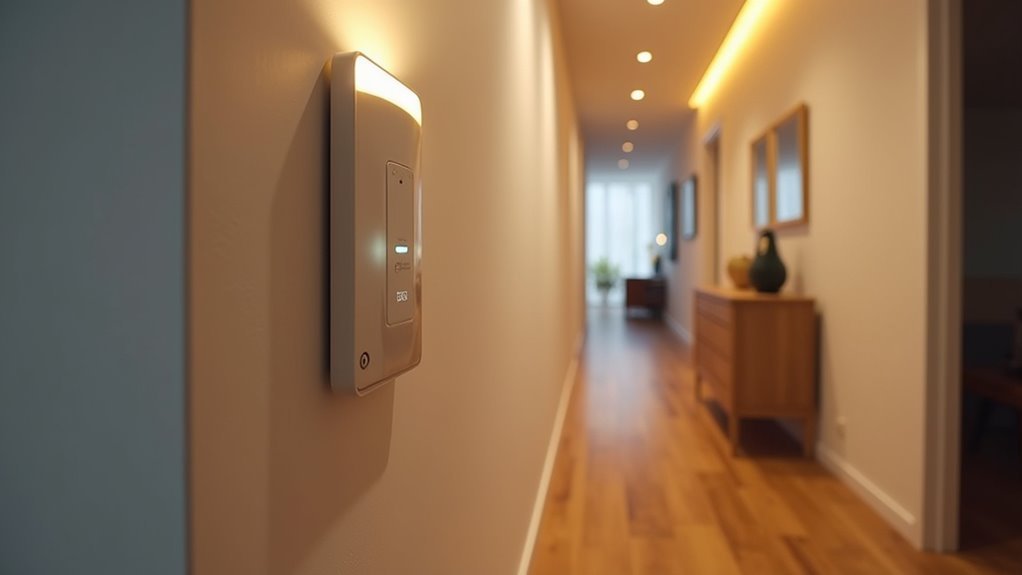
While traversing dark hallways can be frustrating and potentially dangerous, a motion-activated hallway lighting script transforms your Home Assistant setup into an intelligent lighting system that responds instantly to your presence.
You’ll configure this automation using the automation editor by selecting your motion sensor entity as the trigger with `state` type for immediate response. Set conditions like time-of-day to prevent activation during daylight hours.
| Configuration Element | Purpose |
|---|---|
| Motion Sensor Entity | Detects movement and triggers automation |
| Time Conditions | Prevents daytime activation |
| Delay Variables | Customizes off-timer duration |
| Light Integration | Controls connected smart home devices |
Variables let you adjust the delay before lights turn off, accommodating personal preferences. This script integrates seamlessly with other smart home devices, creating extensive automation routines.
Temperature-Based Climate Control Script
Since maintaining ideal indoor temperature throughout changing seasons requires constant manual adjustments, a temperature-based climate control script automates your thermostat to respond intelligently to temperature fluctuations.
You’ll create triggers that activate when indoor temperatures drop below your comfort threshold, automatically calling services to increase thermostat settings.
Your YAML configuration should include conditions restricting adjustments to specific timeframes—like when you’re home or during off-peak energy hours.
Variables make your automation more dynamic, letting you set different thresholds for weekdays versus weekends or seasonal variations.
The script can send mobile notifications whenever climate adjustments occur, keeping you informed about environmental changes.
This temperature-based climate control eliminates constant manual tweaking while ensuring your home stays comfortable.
With proper automation to continue running seamlessly, you’ll maintain ideal temperatures year-round.
Sunset-Triggered Bedroom Blinds Script

Because natural light changes dramatically at sunset, a sunset-triggered bedroom blinds script automatically lowers your window coverings to enhance privacy and reduce harsh evening glare.
This automation uses Home Assistant’s built-in sunset trigger, which calculates precise timing based on your location and current date.
Creating this script involves three key steps:
- Set up the sunset trigger – Configure Home Assistant to detect sunset automatically for your specific geographic location.
- Define the cover service – Specify your blinds’ entity ID and include operational delays for smoother movement.
- Add smart conditions – Incorporate presence detection to guarantee automation only runs when you’re home.
You can customize timing offsets to lower blinds exactly at sunset or minutes beforehand.
This simple automation enhances comfort while demonstrating Home Assistant’s powerful scheduling capabilities.
Battery Level Monitoring Alert Script
As smart home devices multiply throughout your living space, a battery level monitoring alert script becomes essential for preventing unexpected device failures and maintaining seamless automation.
You’ll use sensor entities to track battery percentages across your devices, setting custom thresholds that trigger notifications when levels drop too low.
Create variables for threshold levels and personalized messages, allowing device-specific alerts. Configure the script to send notifications via mobile or email when batteries reach your defined limits.
Implement wait_template delays to prevent notification spam for the same device. Schedule regular monitoring intervals using time-based triggers, ensuring continuous battery level monitoring without overwhelming your system.
This proactive automation approach keeps your smart home running smoothly while alerting you before devices unexpectedly shut down.
Weekly Plant Watering Reminder Script
You can create a reliable plant watering routine by setting up a weekly schedule that triggers on specific days and times using Home Assistant’s time-based automation.
The script’s notification system lets you customize messages with plant-specific details like watering amounts, fertilizer reminders, or care instructions tailored to different plant types.
You’ll want to configure the delivery method that works best for your routine, whether that’s push notifications to your phone, email alerts, or even announcements through smart speakers.
Setting Plant Schedules
When you’re juggling multiple plants with different watering needs, creating an automated reminder system prevents you from accidentally neglecting your green companions.
Setting plant schedules in Home Assistant becomes straightforward once you install Home Assistant and understand basic automation principles.
You’ll create an entity for each plant species with customized care instructions.
Here’s how to optimize your plant watering schedules:
- Define plant variables – Create an entity for each plant type with specific watering frequencies and care requirements
- Set conditional triggers – Use weather data and soil moisture sensors to determine when reminders are actually needed
- Customize notification timing – Add user input fields in the script editor so you can easily adjust reminder times without coding
This basic automation guarantees your plants receive proper care while adapting to environmental conditions.
Notification Message Customization
Once you’ve established your plant entities and triggers, customizing notification messages transforms basic alerts into actionable reminders that fit your daily routine. You’ll use the `notify` service to craft personalized messages that specify which plants need attention and when.
| Message Element | Script Variable | Example Value |
|---|---|---|
| Plant Name | `{{ plant_name }}` | “Fiddle Leaf Fig” |
| Location | `{{ room }}` | “Living Room” |
| Watering Amount | `{{ water_amount }}` | “2 cups” |
| Last Watered | `{{ days_since }}` | “7 days ago” |
Your automation can incorporate custom integrations to pull real-time data about soil moisture or plant health. Define variables in your script’s fields section to make each notification message dynamic and relevant, ensuring you’ll never miss watering schedules again.
Guest Mode Activation Script
You’ll want to create a guest mode script that instantly transforms your home’s settings when visitors arrive.
This script should include basic privacy protections like disabling security cameras in common areas and establishing temporary access controls for guest devices.
Your guest mode setup can automatically adjust lighting, climate, and Wi-Fi access while maintaining security boundaries that protect your private spaces.
Basic Guest Mode Setup
Setting up a basic guest mode activation script transforms how your smart home welcomes visitors while maintaining your privacy and security preferences.
You’ll create an automation that activates when you toggle the guest mode input boolean through your user interface.
Essential Guest Mode Components:
- Privacy Controls – Automatically disable security cameras in common areas and pause motion detection alerts to give guests comfortable privacy.
- Comfort Settings – Adjust thermostat temperature to guest-friendly levels and activate welcoming lighting scenes throughout accessible areas.
- Access Management – Enable guest Wi-Fi network access and engage specific smart locks while restricting access to personal devices.
Your script can include customizable fields for guest names and specific preferences, making the automation accessible for all household members regardless of technical expertise.
Privacy Protection Features
When guests enter your home, privacy protection features automatically shield your personal data and sensitive devices from accidental exposure or unauthorized access.
You’ll create an input_boolean entity that toggles guest mode, instantly restricting access to personal smart home features while maintaining basic functionality for visitors.
Your script incorporates conditions that disable sensitive automation when guest mode activates. Personal devices like bedroom lights, security cameras, and private entertainment systems become inaccessible to guest controls.
Meanwhile, common area lighting, basic climate controls, and guest bathroom features remain available.
The script sends notifications to alert you when guest mode toggles on or off, ensuring you’re aware of privacy settings.
You can customize additional variables for specific guest preferences, creating personalized experiences while maintaining security boundaries throughout your smart home system.
Temporary Access Controls
Because managing temporary visitor access requires precise control over timing and permissions, the Guest Mode Activation Script becomes your primary tool for creating secure, time-limited smart home experiences.
This automation enables you to grant guests access to specific devices like lights and thermostats without exposing your entire system.
The script operates through three essential components:
- Variable customization – Define which areas and devices guests can control during their stay
- Activity logging – Track when guest mode activates and monitor device usage for security purposes
- Single-mode operation – Prevent multiple simultaneous activations that could create system conflicts
You’ll configure temporary access periods through user input or predetermined timeframes, ensuring guests enjoy necessary amenities while maintaining your home’s security integrity throughout their visit.
Nighttime Security Camera Script
Home security becomes markedly more effective once you’ve automated your cameras to activate during nighttime hours.
Your nighttime security camera automation in Home Assistant starts with a time trigger that activates cameras at your specified evening hour. You’ll want to include conditions checking if your home’s unoccupied to prevent unnecessary recordings when you’re present.
Time-triggered camera automation with occupancy conditions ensures smart surveillance that activates only when your home is truly unoccupied.
The script’s action sequence uses the ‘camera.turn_on’ service call to activate your security cameras automatically. You can configure mobile notifications when cameras activate, letting you monitor activity remotely.
Including a delay action allows cameras to turn off after a set period, maintaining energy efficiency while preventing early morning recordings.
This Home Assistant automation guarantees consistent surveillance coverage without manual intervention, strengthening your home’s security posture effortlessly.
Energy-Saving Standby Mode Script
You can greatly reduce your electricity bills by creating a Home Assistant script that automatically shuts down non-essential devices when they’re not needed.
This energy-saving script monitors power consumption patterns and turns off lights, entertainment systems, and other electronics during designated hours or when rooms are unoccupied.
Automatic Device Shutdown
Since many smart home devices continue consuming power even when not actively in use, an Automatic Device Shutdown script offers an effective solution for reducing energy waste throughout your home.
This Home Assistant script automatically powers off devices after predetermined periods of inactivity, delivering substantial energy savings.
Here’s how to implement automatic device shutdown effectively:
- Set Custom Delays – Use the `delay` action to specify inactivity periods before shutdown, with variables allowing personalized timing based on your preferences or specific conditions.
- Target Multiple Devices – Employ `service` calls with entity IDs to simultaneously turn off lights, appliances, and other smart devices throughout your home.
- Integrate with Automations – Trigger shutdowns based on motion sensors, time schedules, or occupancy detection for seamless energy management.
Power Consumption Monitoring
While many homeowners focus on turning devices off completely, implementing a Power Consumption Monitoring script with energy-saving standby mode provides a more sophisticated approach to managing your smart home’s energy usage.
This power consumption script tracks connected devices’ energy usage, helping you identify which ones consume the most electricity. You can configure automatic standby modes during specific hours or when devices aren’t actively used, reducing waste and lowering bills.
Integrating energy monitoring sensors with Home Assistant enables real-time tracking and detailed reporting. The script sends alerts when devices exceed predefined consumption thresholds, prompting immediate action.
Rather than completely shutting down devices that need quick startup times, this energy monitoring approach maintains functionality while minimizing unnecessary power draw, creating an efficient balance between convenience and conservation.
Frequently Asked Questions
What Is the Easiest Way to Get Started With Home Assistant?
You’ll want to start by installing Home Assistant on a Raspberry Pi or computer, then use the built-in automation editor to create simple triggers and actions without writing code initially.
Is the Raspberry Pi 5 Overkill for Home Assistant?
You’ll find the Raspberry Pi 5 overkill if you’re running basic automations and simple integrations. However, if you’re planning complex scripts or managing many devices, you’ll appreciate its enhanced performance.
How Do I Create Simple Automation in Home Assistant?
Access the Automation Editor under Settings, select “Start with empty automation,” define your trigger, add conditions if needed, specify actions, then save and test your automation works correctly.
What Is the Easier Alternative to a Home Assistant?
You’ll find SmartThings or Google Home much easier than Home Assistant. They offer user-friendly mobile apps, pre-configured automations, and simpler setup processes that don’t require extensive coding knowledge or technical expertise.




Leave a Reply