

You’ve spent countless hours setting up your home automation system, but your dashboard still feels generic and cluttered. The truth is, most people never move beyond the basic setup, missing out on powerful customization features that transform their smart home experience. Whether you’re managing multiple users or simply want better control over your devices, these three strategic approaches will revolutionize how you interact with your automated home.
Organize Views by Room and User Access Levels
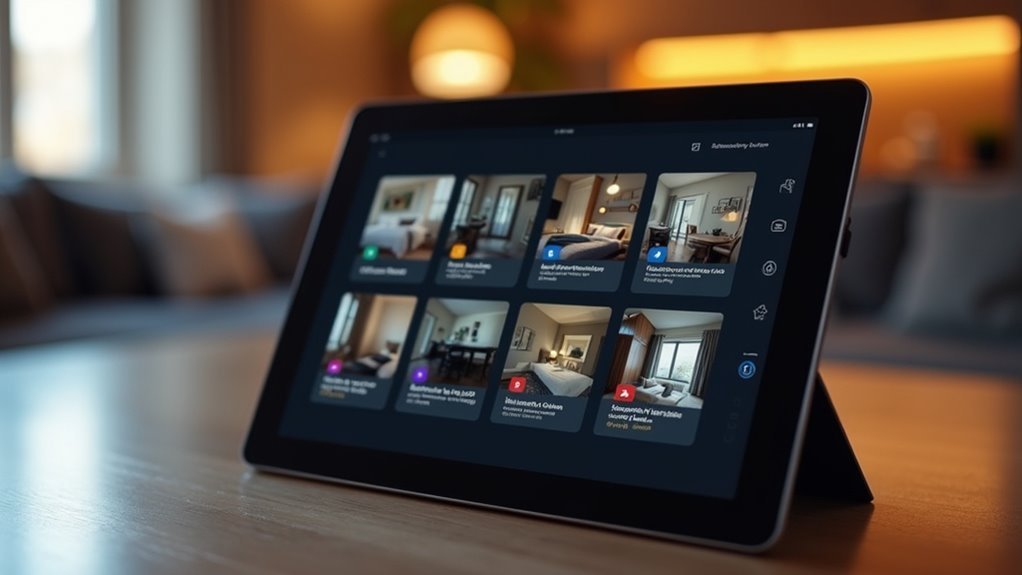
When you organize your home automation dashboard by room and user access levels, you’ll create a more intuitive and secure control system that adapts to each household member’s needs.
Start by creating distinct views for each room in your Home Assistant setup—Living Room, Office, and Laundry Room views streamline access to relevant controls. Your dashboard layout becomes more efficient when users can navigate directly to their specific areas.
Room-specific dashboard views eliminate clutter and create intuitive navigation paths for seamless smart home control.
Use YAML code to manage visibility settings, ensuring specific user profiles only access views pertinent to their specific needs.
Implement navigation buttons on your Home view for easier shifts between rooms. Take advantage of state-switch cards to dynamically show or hide navigation elements based on user roles.
When you create your own dashboard this way, you’ll enhance both personalization and security throughout your smart home system.
Implement State-Switch Cards for Dynamic Content Control
Since your dashboard needs vary based on who’s using it, state-switch cards provide the perfect solution for creating dynamic content that adapts to specific users or conditions.
These cards let you control which dashboard elements remain visible based on user roles or usernames, helping you personalize experiences effectively.
Install state-switch cards through HACS in Home Assistant, then refresh your browser cache to activate the new functionality.
You can define specific conditions within these cards to show or hide entities, creating a truly user-friendly interface that responds to different access levels.
Test your setup by logging in as different users or using incognito mode to verify that visibility settings work correctly across various user scenarios.
Customize Themes and Widgets for Enhanced Visual Appeal
Three essential customization layers transform your Home Assistant dashboard from functional to visually stunning: themes, widgets, and community resources.
Custom themes let you define CSS-based color schemes and fonts that reflect your personal style while maintaining your smart home’s functionality.
You’ll enhance your dashboard’s visual appeal through:
- Custom Theme Creation – Design personalized color palettes and typography using CSS syntax to match your home’s aesthetic.
- Widget Development – Build interactive dashboard widgets using HTML, CSS, and JavaScript for displaying information uniquely.
- Community Resources – Access templates and custom cards that provide specialized functionality beyond built-in options.
Apply themes instantly through the dropdown menu to transform your Home’s appearance.
Built-in widgets display sensor data effectively, while custom dashboard widgets offer unlimited creative possibilities for your smart home interface.
Frequently Asked Questions
How to Customize a Home Assistant Dashboard?
You can customize your Home Assistant dashboard using the built-in editor for simple changes, create YAML files for advanced layouts, apply custom CSS themes, or download community templates for quick personalization.
What to Add to Home Assistant Dashboard?
You should add sensor data panels for temperature and humidity, switch controls for lights and thermostats, camera feeds for security monitoring, navigation buttons for different rooms, and custom themes for visual appeal.
How to Organize a Home Assistant Dashboard?
You’ll organize your Home Assistant dashboard by grouping related entities into themed cards, arranging them by priority and frequency of use, then creating logical room-based or function-based sections for intuitive navigation.
How Do I View the Configuration of My Dashboard in Home Assistant?
Navigate to your Home Assistant web interface and click Configuration > Dashboards to access the dashboard editor. You’ll see your current layout and can switch to YAML mode for detailed configuration viewing.




Leave a Reply