
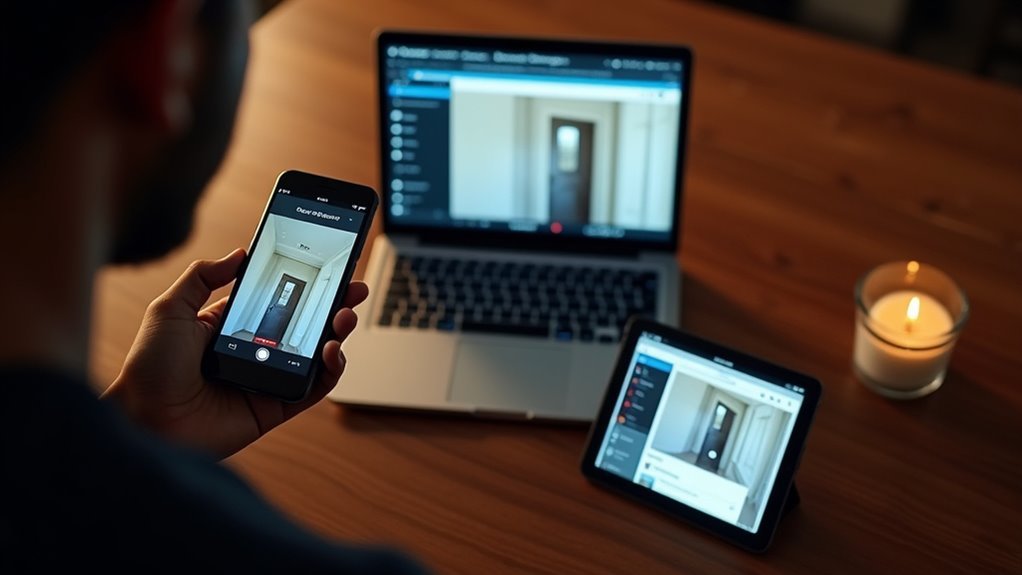
You’ve invested in a doorbell camera for security, but you’re not always home to monitor it. Whether you’re at work, traveling, or simply want to check who’s at your door from another room, accessing your camera remotely transforms it from a basic recording device into a powerful surveillance tool. However, many homeowners struggle with the technical setup or don’t realize they have multiple options available. The key lies in understanding which method works best for your specific situation.
Using the Manufacturer’s Mobile App

When you want to access your doorbell camera from anywhere, the manufacturer’s mobile app serves as your primary gateway to remote functionality.
Download the dedicated app from your device’s app store and create an account or log in to existing credentials. Verify your camera connects to your Wi-Fi network and powers on properly before proceeding with setup.
The app enables you to add your camera by scanning its QR code or entering the unique device ID.
Once configured, you’ll gain full remote access to essential features. Monitor live video feeds in real-time, receive instant motion alerts when activity occurs, and communicate with visitors through two-way audio functionality.
This mobile app becomes your primary control center for thorough doorbell camera management.
Accessing Through Your Web Browser
While mobile apps offer convenient doorbell camera access, you can also monitor your device through any standard web browser for enhanced versatility.
To access security cameras remotely, you’ll need your camera’s specific web address or IP address. Enter this information into your browser’s address bar to reach the camera portal.
Next, log into the system using your established credentials. Once authenticated, navigate the web interface to locate your doorbell camera’s live video feeds.
You can select specific feeds for real-time monitoring, allowing you to monitor activity at your entrance instantly. The web interface also provides remote access to recorded footage and lets you adjust camera settings directly through your browser, offering thorough control over your security system.
Setting Up Port Forwarding on Your Router

Browser access requires proper network configuration to function outside your home network. You’ll need to configure port forwarding rules through your router configuration software to enable remote access to security devices.
Start by locating your doorbell camera’s internal IP address in the device settings or router’s connected device list. Next, obtain your router’s WAN IP address using a public IP detection website – this external IP address allows outside connections to reach your network.
Locate your camera’s internal IP in device settings, then find your router’s external WAN IP using a public detection website.
Identify the specific port numbers your security camera software uses for communication, typically found in the camera’s documentation. Access your router’s interface and create forwarding rules linking your camera’s IP address with these ports.
This network configuration enables you to access live video feeds remotely by entering your WAN IP address and port number into any web browser.
Frequently Asked Questions
How Can I Access My Wifi Camera Away From Home?
You’ll download your camera manufacturer’s app on your smartphone, connect the camera to WiFi, create an account, and add your camera using its QR code or unique ID for remote access.
How Do You Blind a Doorbell Camera?
You can blind a doorbell camera by placing tape or stickers over the lens, using a privacy cover, or temporarily disabling recording through the camera’s app settings.
How Do I View My Security Cameras Remotely?
You can view your security cameras remotely by installing the manufacturer’s app on your smartphone, logging into the system’s web portal, or using cloud storage services for access.
Can You View a Ring Doorbell Away From Home?
Yes, you can view your Ring doorbell away from home using the Ring app on your smartphone or tablet. You’ll need a stable internet connection and your doorbell connected to Wi-Fi.




Leave a Reply