
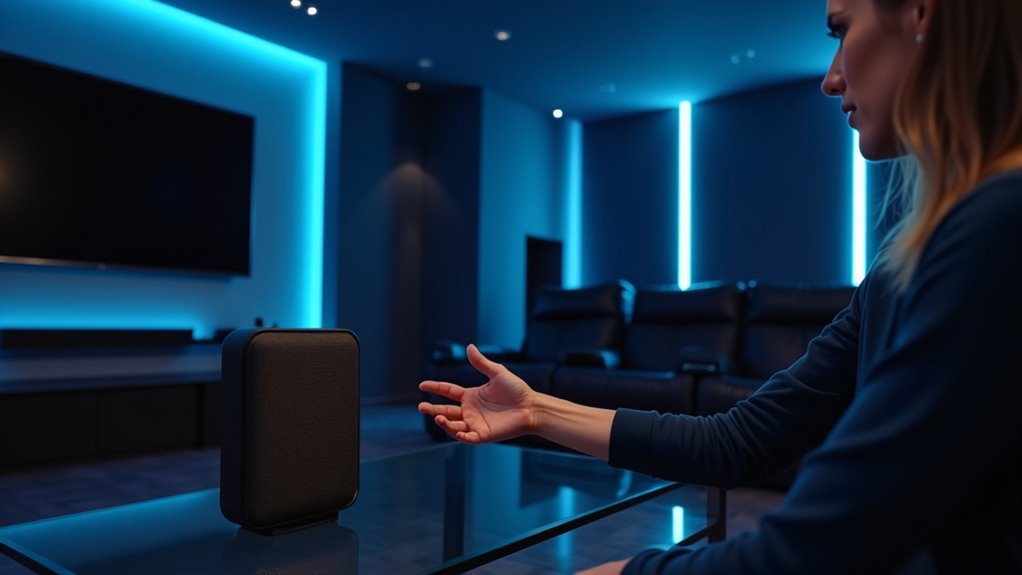
You’ve probably fumbled around in the dark searching for your remote during the most intense movie scenes. Voice commands can eliminate this frustration entirely, transforming your home cinema into a truly smart entertainment hub. Whether you’re using Alexa, Google Assistant, or Apple’s Siri, the right setup lets you control everything from volume levels to lighting with simple spoken instructions. However, choosing the wrong platform or skipping essential configuration steps could leave you more frustrated than before.
Choosing Your Voice Assistant Platform
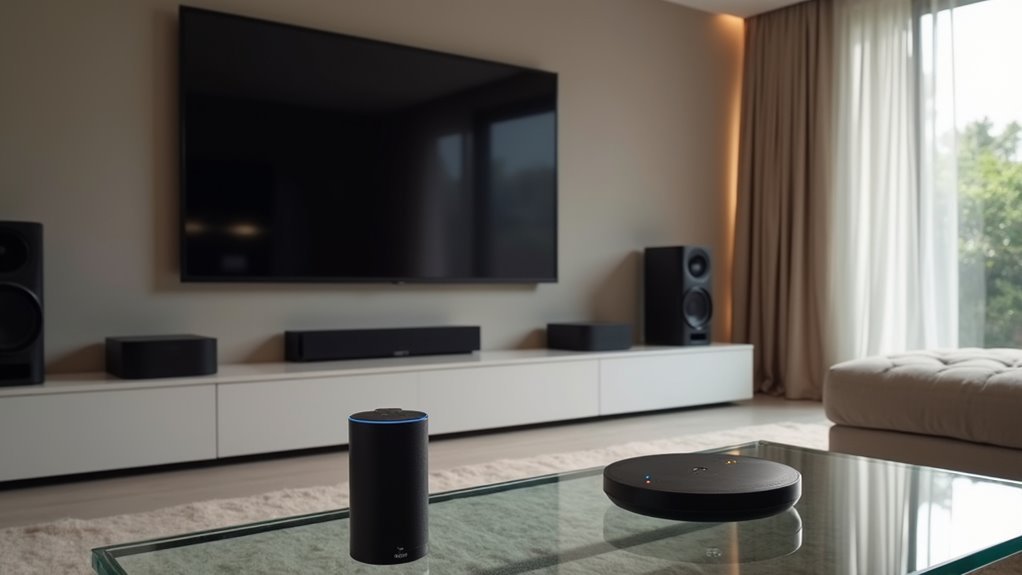
When setting up voice commands for your home cinema, you’ll need to select a voice assistant platform that aligns with your existing smart home ecosystem.
Amazon Alexa and Google Assistant offer extensive compatibility with third-party products, making them versatile choices for voice control. The Amazon Alexa app enables voice commands for audio and video components, while Google Home provides seamless streaming service integration.
Amazon Alexa and Google Assistant provide versatile third-party compatibility, offering comprehensive voice control for audio, video, and streaming integration.
Apple HomeKit works best if you’re already invested in Apple devices, with HomePods excelling through AirPlay 2 connectivity.
Consider each platform’s built-in capabilities carefully. Echo and Google Nest devices can directly control compatible AV equipment, while voice assistants should support automation routines and multi-room audio for ideal home cinema integration.
Setting Up Voice Control for Audio Systems
Three essential steps will transform your audio system into a voice-controlled entertainment hub.
First, download the appropriate app for your chosen voice assistant—whether Amazon Alexa or Google Assistant—and connect it to your home Wi-Fi network.
Next, link compatible music services to enable seamless streaming and hands-free playbook control.
Once connected, you’ll use specific voice commands like “Alexa, play music on [your system name]” or “Hey Google, play my favorite playlist” to control your home audio effortlessly.
However, verify your audio system’s compatibility first, as some setups require additional hardware for full integration.
Finally, regularly check your voice assistant app settings to optimize performance and troubleshoot any connectivity issues that might arise.
Connecting Smart Speakers to Home Theater Components

After establishing your voice assistant’s basic functionality, you’ll need to physically connect your smart speakers to your home theater components for best performance.
Verify compatibility between your Amazon Alexa or Google Assistant and your AV receiver through Bluetooth, Wi-Fi, or wired connections.
Use the Alexa app to link music services and control your receiver with voice command functionality.
Google Assistant connects via Chromecast built-in, enabling high-resolution audio streaming and voice control over compatible smart devices.
Keep all components on the same Wi-Fi network for seamless communication.
Consider powered speakers with built-in voice assistants to simplify setup and improve sound quality, as they’re designed to integrate smoothly with existing home theater systems.
Essential Voice Commands for Movie Playback
You’ll need to master three core categories of voice commands to control your home cinema effectively.
Basic playback controls like “pause,” “resume,” and “skip forward” give you hands-free operation during movies.
Content selection commands and audio-visual adjustments round out your essential toolkit for creating the perfect viewing experience.
Basic Playback Controls
Four essential voice commands form the backbone of hands-free movie control in your home cinema setup.
You’ll use these basic playback controls constantly during your viewing sessions to maintain seamless entertainment without fumbling for remotes.
Start playback by saying “Alexa, play [movie title]” or “Hey Google, start [movie title]” to initiate movies on compatible streaming services.
Once your film begins, voice control becomes effortless with simple commands like “Pause” when you need breaks and “Resume” to continue watching.
Navigate through scenes using “Fast forward” and “Rewind” commands for quick content adjustment.
These fundamental controls eliminate the need to search for physical remotes, keeping you immersed in your cinematic experience while maintaining complete command over playback timing and flow.
Content Selection Commands
Beyond controlling movies already playing, voice assistants excel at helping you discover and launch new content across your streaming platforms.
Content selection commands transform how you browse and access entertainment without touching a remote. Use specific commands like “Alexa, play Stranger Things on Netflix” to launch exact titles. For broader searches, try “Alexa, show me action movies” to explore genres quickly.
When you’re unsure what to watch, commands like “Hey Google, find comedies on Netflix” help narrow options by category and service. These content selection commands work seamlessly with Alexa and Google Assistant across major streaming platforms.
You can even resume previous viewing sessions by saying “Alexa, resume my movie” or continue specific shows you’ve started watching.
Audio Visual Adjustments
Smart voice commands transform your home cinema into a hands-free entertainment hub where you can fine-tune every aspect of your viewing experience without fumbling for multiple remotes.
You’ll master audio visual adjustments through simple voice commands that control multiple elements simultaneously. Create the perfect ambiance with commands like “Alexa, set the movie mode” to dim lights and lower shades instantly.
Essential audio visual voice commands include:
- Audio Enhancement: “Alexa, switch the audio to surround sound” for immersive sound experiences
- Volume Control: “Siri, increase the volume on the TV” for precise audio adjustments
- Scene Refinement: “Alexa, set the movie mode” for all-encompassing lighting and shade control
- Integrated Routines: “Goodnight” to turn off TV, dim lights, and adjust temperature
These commands eliminate the need for multiple remotes while ensuring ideal viewing conditions.
Controlling Volume and Audio Settings With Voice
Managing your home cinema’s audio through voice commands transforms how you interact with your entertainment system. Your voice assistant becomes the central hub for seamless volume control, eliminating the need for multiple remotes.
| Voice Assistant | Volume Commands |
|---|---|
| Amazon Alexa | “Alexa, turn up the volume” or “set volume to 5” |
| Google Assistant | “Hey Google, increase volume” or “set volume to 30%” |
| Apple Siri | “Hey Siri, turn volume up on living room speakers” |
| Smart Speakers | “Volume down” or “Mute” for direct control |
| Configuration | Link assistant to audio equipment properly |
You’ll need to guarantee your voice assistant is properly configured and linked to your audio equipment. Most smart speakers with built-in assistants can manage settings directly, allowing quick adjustments without reaching for remotes.
Managing Multiple Streaming Services Through Voice
When you’re juggling Netflix, Hulu, Disney+, Amazon Prime Video, and other streaming platforms, voice commands eliminate the tedious menu navigation that typically accompanies switching between services.
Managing multiple streaming services becomes effortless when you link each platform to your smart assistant.
Voice commands streamline your entertainment experience through these essential steps:
- Link all streaming services to your voice assistant, enabling specific commands like “Alexa, play Stranger Things on Netflix”
- Connect devices to the same Wi-Fi network to guarantee seamless communication between your streaming devices and smart speakers
- Create custom routines such as “Movie Night” to automate lighting, projector activation, and app launching simultaneously
- Personalize frequent commands with phrases like “Play my action movies on Prime Video” for enhanced efficiency
Voice-Activated Lighting Control for Cinema Ambiance
Although manually adjusting light switches disrupts your movie experience, voice-activated lighting control transforms your living room into a professional cinema with simple spoken commands. You can adjust brightness and color instantly with commands like “Hey Google, dim the lights to 30%” for ideal viewing conditions.
Smart lights integrate seamlessly with voice assistants to create automated scenes that respond to your content. Whether you’re watching action films or romantic comedies, you’ll enjoy customized ambiance without interrupting your entertainment.
| Voice Assistant | Command Example |
|---|---|
| Google Assistant | “Dim lights to 20%” |
| Amazon Alexa | “Set thriller movie lighting” |
| Apple HomeKit | “Cinema mode on” |
| Multi-platform | “Turn off all lights” |
| Custom scenes | “Movie night ambiance” |
Compatibility across ecosystems guarantees effortless control regardless of your preferred platform.
Integrating Voice Commands With Smart Projectors and TVS
You’ll need to configure your smart projector or TV to work with your preferred voice assistant through initial device setup.
This process typically involves downloading the manufacturer’s app, connecting both devices to the same Wi-Fi network, and linking them to your Amazon Alexa, Google Assistant, or Apple Siri account.
Once you’ve completed the setup, you can integrate these entertainment devices seamlessly into your existing smart home ecosystem for hands-free control.
Voice Control Setup
Setting up voice control for your smart projectors and TVs transforms your home cinema into a hands-free entertainment hub that responds to simple spoken commands.
Your voice control setup requires selecting a compatible voice assistant and properly configuring your home theater setup through the appropriate apps.
Follow these essential steps for successful integration:
- Download the correct app – Install Alexa, Google Home, or Apple Home app based on your chosen voice assistant.
- Enable necessary skills or links – Connect your smart devices through the app’s device management section.
- Test basic commands – Try “turn on the projector” or “play Netflix” to verify functionality.
- Regular maintenance – Check device connections and update settings periodically for peak performance.
This streamlined approach guarantees seamless voice control integration.
Smart Device Integration
HDMI-CEC compatibility allows you to control multiple devices with single commands, streamlining your setup.
Take advantage of your smart app’s routine features to automate complex sequences. You can create commands like “Alexa, start movie night” that simultaneously dim lights, power on equipment, and launch your preferred streaming service.
Creating Custom Voice Routines for Movie Night
While juggling multiple remote controls and manually adjusting various settings can turn movie night into a chore, creating custom voice routines transforms the experience into something magical.
Your smart assistant can orchestrate every aspect of your home cinema with a single command.
Here’s how to set up your custom voice routines:
- Open your smart assistant’s app and create a new routine called “Movie Night” that dims lights, adjusts the thermostat, and powers on your projector.
- Integrate streaming services so you can say “play [Movie Title] on [Service]” for instant entertainment.
- Include smart plugs in your routine to control all AV equipment automatically.
- Create genre-specific commands like “Action Night” with tailored lighting and sound settings.
Regular updates guarantee seamless compatibility with new devices.
Troubleshooting Common Voice Control Issues
Frustration builds quickly when your carefully crafted voice routines suddenly stop working or your smart assistant can’t understand basic commands.
When troubleshooting voice control issues, start by checking that all devices are connected to the same Wi-Fi network, as mismatched networks commonly cause communication failures.
Update your voice assistant’s firmware and connected device software regularly to maintain compatibility. Be specific with your commands – saying “Turn up the volume” works better than vague phrases like “Volume up.”
Verify that necessary skills are enabled in your assistant’s app for cinema control.
If commands aren’t being recognized, eliminate physical obstructions around your device and reduce background noise that might interfere with the microphone’s sensitivity.
Privacy Settings and Microphone Management
Although voice commands offer unparalleled convenience for controlling your home cinema, you’ll want to configure proper privacy settings to maintain control over your personal data.
Effective microphone management starts with understanding your device’s privacy options:
- Use physical mute buttons – Voice assistants like Google Nest Mini feature dedicated mute buttons that completely disable microphones when privacy is needed.
- Configure app-based controls – Manage voice recording preferences through your assistant’s app settings, allowing you to review or delete past interactions.
- Leverage automatic muting – Sonos surround speakers automatically mute microphones when configured in home theater setups to prevent unintended listening.
- Set data collection limits – Amazon Alexa and similar devices offer privacy settings that disable voice activation or restrict data collection entirely.
You can also turn off voice assistants completely for maximum privacy protection.
Voice Control for Surround Sound Systems
You’ll need to guarantee your surround sound system works with popular voice assistants like Alexa or Google Assistant for seamless control.
Your surround speakers may automatically mute their microphones during movie playback, which can affect voice command recognition.
Setting up multi-room audio control lets you manage your entire home theater system with simple voice commands like “switch to movie mode” or “adjust the bass.”
Voice Assistant Compatibility
When modern surround sound systems integrate with voice assistants like Amazon Alexa and Google Assistant, they transform your home cinema experience into a hands-free entertainment hub. Voice assistant compatibility varies depending on your chosen platform and setup configuration.
Your surround sound system’s voice assistant compatibility depends on several key factors:
- Microphone activation – Sonos speakers enable microphones with Alexa but mute them with Google Assistant.
- Device recognition – Surround speakers function as part of your home theater system rather than individual voice-controlled devices.
- Command clarity – Clear phrasing like “Alexa, play music in the living room” guarantees accurate response.
- Multiple assistant integration – You can choose which assistant to activate based on ideal speaker positioning.
The Sonos App manages your surround sound setup while maintaining seamless voice assistant compatibility throughout your entertainment system.
Surround Speaker Microphones
Microphone functionality in your surround speakers operates differently than standalone voice assistants, with specific behaviors that depend on your chosen platform and setup configuration.
When you configure speakers like the Sonos Era 300 as part of your surround sound system, their microphones are automatically muted to prevent unintended activation and maintain peak audio performance.
However, you can enable microphones when using Amazon Alexa, allowing your surround speakers to respond to voice commands alongside other Alexa devices.
With Google Assistant and Sonos One surround speakers, only the device that hears your command best will respond, ensuring clear voice recognition.
Remember that surround speakers integrate into your Home Theater setup rather than functioning as independent devices, so you’ll need to manage voice assistant settings accordingly.
Multi-Room Audio Control
Beyond individual speaker control, voice assistants transform your entire home into a coordinated audio environment where surround sound systems work seamlessly with multi-room setups.
Multi-room audio control lets you command synchronized playback across different zones while maintaining your cinema’s surround sound capabilities.
Voice commands enable sophisticated audio management through these key functions:
- Zone Targeting – Direct audio to specific rooms with “Alexa, play music in the living room”
- Whole-Home Streaming – Synchronize all speakers using “Hey Google, stream to all speakers”
- Custom Routines – Program movie night scenes that automatically adjust surround sound modes and volume levels
- Hands-Free Adjustments – Control settings with commands like “turn on surround sound” or “set volume to 50%”
This integration creates seamless shifts between rooms without manual adjustments.
Advanced Voice Commands for Home Theater Automation
Although basic voice controls handle simple tasks like play and pause, advanced voice commands transform your home theater into a fully automated entertainment hub. Your home assistant can execute complex routines with single phrases like “Alexa, start movie night,” automatically dimming lights, lowering shades, and powering on your projector.
| Voice Assistant | Command Example | Action Result |
|---|---|---|
| Alexa | “Start movie night” | Dims lights, lowers shades, turns on projector |
| Google Assistant | “It’s movie time” | Adjusts thermostat, switches off lights |
| Siri | “Turn up the volume” | Controls playback seamlessly |
| Any Compatible | “Switch to HDMI 1” | Changes AV receiver input |
These advanced voice commands streamline your entertainment experience by integrating multiple smart devices into cohesive automation sequences.
Optimizing Voice Recognition in Home Cinema Environments
When your voice assistant struggles to hear commands over movie dialogue or room acoustics, strategic placement becomes critical for reliable home cinema control.
Position your smart speakers away from walls and furniture that might block sound waves or create interference. Room acoustics greatly impact recognition accuracy, so you’ll want to optimize your environment accordingly.
Smart speaker placement directly affects voice recognition performance, making strategic positioning essential for overcoming audio interference in your home theater setup.
Follow these essential optimization steps:
- Update firmware regularly to access improved voice recognition algorithms and enhanced features
- Use specific, clear commands tailored to your devices rather than casual speech patterns
- Add soft furnishings like curtains or cushions to absorb sound and reduce echoes that confuse voice assistants
- Adjust microphone sensitivity settings through testing to find the perfect balance for your cinema’s dynamic audio environment
Frequently Asked Questions
How to Setup Voice Commands?
Download your voice assistant’s app, connect compatible home cinema devices, create specific commands like “turn on projector,” link streaming services, and regularly check settings to verify ideal functionality and connectivity.
How Do I Connect Alexa to My Home Theater?
Download the Amazon Alexa app and connect your Alexa device to the same Wi-Fi network as your home theater. Use wired connections for better quality, then enable necessary skills for voice control.
How Can I Control My TV With Voice Commands?
You’ll need a compatible smart assistant like Alexa or Google Assistant connected to your TV’s Wi-Fi network. Use specific commands like “turn on TV” or “switch to Netflix” for hands-free control.
Is Google Home Voice Activated?
Yes, Google Home is voice-activated. You’ll activate it by saying “Hey Google” or “Ok Google” followed by your command. You can control smart devices, play music, and manage your entertainment system hands-free.




Leave a Reply