
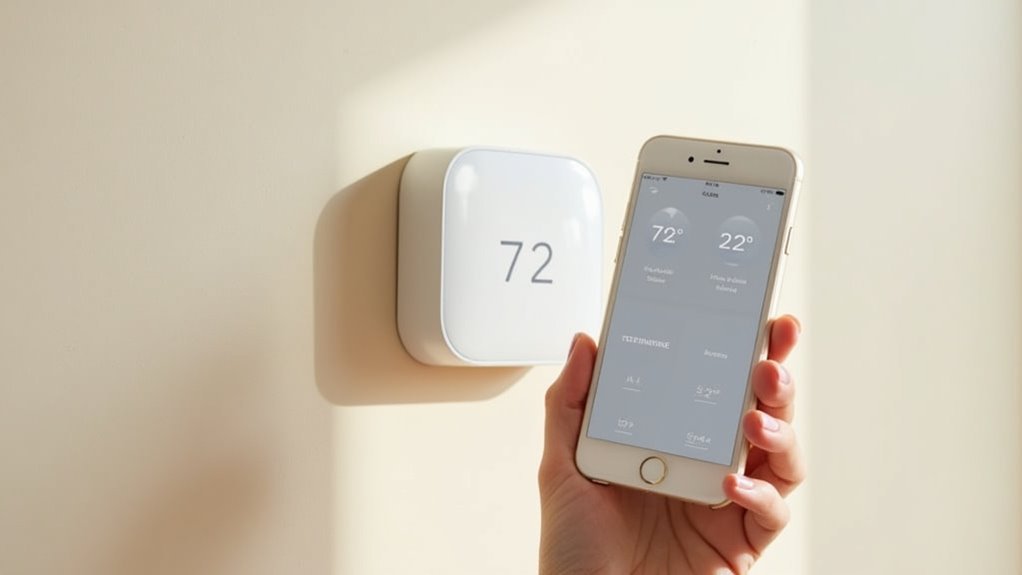
You’re tired of walking into a freezing house after vacation or wasting money heating an empty home all day. Remote thermostat control changes everything by putting your climate system in your pocket. Whether you’re stuck in traffic, lounging on a beach, or simply upstairs in bed, you can adjust your home’s temperature instantly. But before you experience this convenience, there’s more to understand about making it work seamlessly.
What Makes a Thermostat Controllable From Anywhere
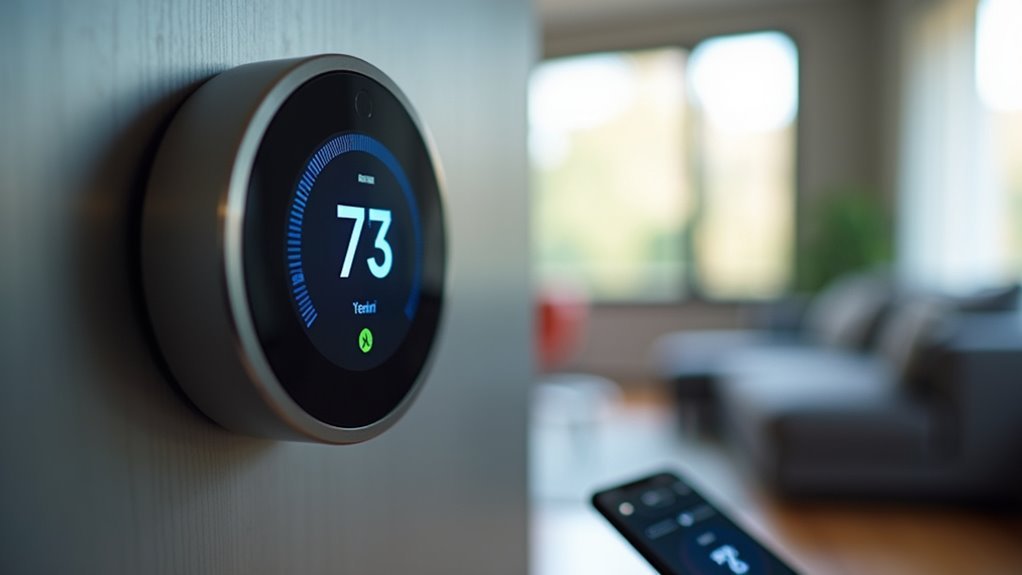
When you connect your thermostat to a Wi-Fi network, you gain the ability to control it from virtually anywhere in the world. This connectivity transforms your standard device into a remote thermostat that responds to commands through smartphone apps or web interfaces.
After installation, you’ll register your device to your account on a cloud server, enabling global access to temperature controls. You can adjust settings, switch between heating and cooling modes, and monitor energy consumption from any location with internet access.
Many smart thermostats also integrate with virtual assistants like Alexa and Google Assistant, allowing voice commands for added convenience.
Continuous internet connectivity remains essential for maintaining these remote functionalities, ensuring you can effectively control your thermostat regardless of your location.
Essential Requirements for Remote Thermostat Access
Before you can adjust your home’s temperature from across town or another country, you’ll need to meet several technical requirements that enable remote connectivity.
Your smart thermostat must connect to your Wi-Fi network during initial setup, creating the foundation for remote access. You’ll also need a stable internet connection through Wi-Fi or cellular data to communicate with the thermostat’s dedicated app.
A stable Wi-Fi connection during setup establishes the essential foundation needed for controlling your thermostat from anywhere.
Essential requirements include:
- Compatible smartphone – Android 9.0+ or iOS 15.0+ device with the manufacturer’s app installed
- Reliable internet connection – Both at home for the thermostat and wherever you’re accessing it remotely
- Server connectivity – Regular communication between your smart thermostat and the manufacturer’s servers
For enhanced functionality, verify your device supports voice assistant integration with Alexa or Google Assistant.
Setting Up Wi-Fi Connectivity for Your Smart Thermostat
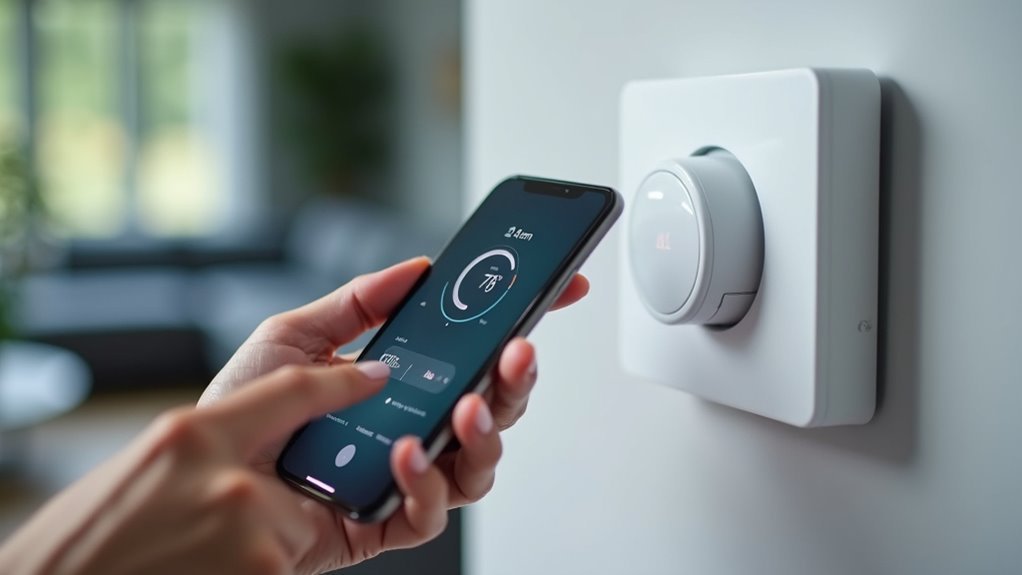
You’ll need to complete the initial network setup process to connect your smart thermostat to your home’s Wi-Fi network.
If you encounter connection problems, you’ll want to troubleshoot common issues like network compatibility and signal strength.
Once connected, maintaining stable Wi-Fi performance guarantees your thermostat stays accessible for remote control.
Initial Network Setup Process
Although your smart thermostat’s hardware installation might be complete, establishing Wi-Fi connectivity is what transforms it from a standard programmable device into a remotely controllable system.
The initial network setup process requires careful attention to guarantee seamless operation:
- Download the compatible app for your specific thermostat brand before beginning the setup process.
- Follow the guided prompts in the app to connect your thermostat to your home Wi-Fi network during initial configuration.
- Verify signal strength at your thermostat’s location to guarantee stable internet connectivity for reliable remote access.
If your installation requires a C-wire, confirm it’s properly connected as some models need continuous power during setup.
Once your thermostat successfully connects to Wi-Fi, it’ll automatically register with the manufacturer’s server, enabling full remote control capabilities through the mobile app.
Troubleshooting Connection Issues
When your smart thermostat refuses to connect to Wi-Fi despite multiple attempts, specific troubleshooting steps can resolve most connectivity problems.
First, verify your Wi-Fi network’s stability and check if your thermostat requires a specific frequency band—many devices work exclusively on 2.4GHz networks rather than 5GHz.
If connection issues persist, reset your thermostat completely and reconfigure the Wi-Fi settings through the manufacturer’s app, following their specific troubleshooting guidelines.
Check for firmware updates within the app, as newer software versions often fix connectivity bugs and enhance Wi-Fi performance.
These systematic troubleshooting connection issues steps will restore your ability to control temperatures remotely using your smartphone from anywhere.
Maintaining Stable Wi-Fi Performance
After resolving initial connection problems, maintaining ideal Wi-Fi performance requires strategic placement and network configuration for your smart thermostat.
You’ll need to focus on three critical areas to guarantee consistent connectivity:
- Position your thermostat strategically – Place it in a location with minimal obstructions between the device and your router to maximize signal strength and prevent dropped connections.
- Upgrade your network equipment – Use a dual-band router supporting both 2.4 GHz and 5 GHz bands to enhance overall performance and reduce network congestion.
- Install a Wi-Fi extender when necessary – If your thermostat’s located far from the main router, a Wi-Fi extender will maintain stable Wi-Fi coverage throughout your home.
Regularly check for firmware updates to optimize performance and guarantee your thermostat remains compatible with your network configuration.
Downloading and Configuring Your Thermostat App
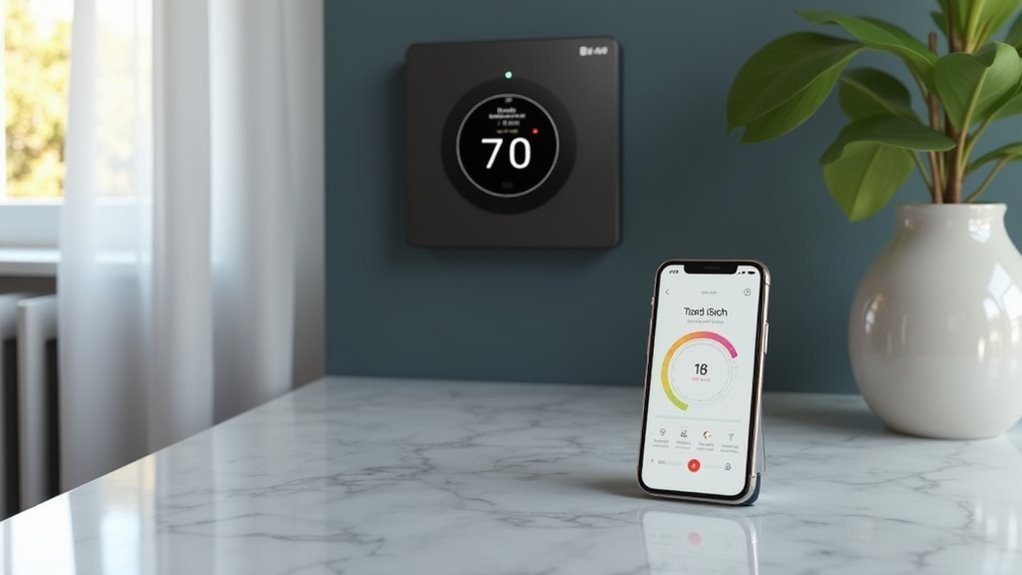
You’ll need to download your thermostat’s specific app from the App Store or Google Play Store to enable remote control capabilities.
Once installed, create an account within the app to access your user dashboard and manage connected devices.
The app requires your thermostat to be connected to your home Wi-Fi network, so verify this connection is established during the initial setup process.
App Download Process
Before you can remotely control your thermostat, you’ll need to download the specific app designed for your smart thermostat brand from either the Google Play Store or Apple App Store.
The app download process requires ensuring your device meets compatibility requirements before installation.
Follow these essential steps for successful app installation:
- Check device compatibility – Verify your smartphone runs Android 9.0+ or iOS 15.0+ to support modern smart thermostat apps.
- Search for your brand’s app – Locate the official app for your specific thermostat manufacturer in your device’s app store.
- Download and install – Select the correct app from smart thermostat brands like Nest, Ecobee, or Honeywell, then complete the installation.
Once installed, you’re ready to begin the setup process and start managing your home’s temperature remotely.
WiFi Connection Setup
Once your thermostat app is installed, establishing a stable Wi-Fi connection becomes your next critical step for enabling remote control functionality. You’ll need to connect your thermostat to your home’s Wi-Fi network during the initial wifi connection setup process. This connection allows your device to communicate with the server, enabling you to control your thermostat remotely from anywhere with internet access.
| Connection Step | Action Required | Expected Result |
|---|---|---|
| Network Selection | Choose your home Wi-Fi | Thermostat displays available networks |
| Password Entry | Input Wi-Fi credentials | Device authenticates with router |
| Signal Verification | Confirm stable connection | Green indicator shows successful link |
| Server Registration | Link to your account | Remote access becomes available |
| Functionality Test | Adjust temperature remotely | Changes reflect on physical device |
Creating Your Remote Access Account and Device Registration
Most smart thermostat brands require you to establish a remote access account through their dedicated mobile app before you can control your device from anywhere.
Once you’ve downloaded the app corresponding to your thermostat brand, you’ll need to follow the on-screen instructions for account setup.
The device registration process involves three key steps:
- Connect your thermostat to your home Wi-Fi network during initial configuration to enable seamless remote access.
- Complete the registration process through the app, which adds your device to the brand’s server system.
- Verify your stable internet connection via Wi-Fi or cellular data to maintain continuous app access.
After successful registration, you’ll be able to manage multiple devices across different locations using one account, greatly enhancing your control over home climate management.
Temperature Scheduling and Automated Climate Control
After establishing your remote access account, you can harness your smart thermostat’s most powerful feature: automated temperature scheduling.
You’ll create custom heating and cooling schedules through your mobile app, tailoring temperature settings to your daily routines. Schedule specific temperature changes for different days and times, ensuring comfort when you’re home and energy savings when away.
Your smart heating system’s automation features adjust settings based on your preferences and routines, enhancing convenience and efficiency.
Geofencing technology automatically adjusts temperatures when you’re within a designated area near home, optimizing energy usage.
You can easily override scheduled settings through the app, providing flexibility to adapt to last-minute plan changes or preference adjustments.
Geofencing Technology for Location-Based Temperature Adjustments
While traditional scheduling requires you to predict your daily routine, geofencing technology transforms your smart thermostat into an intelligent system that responds to your actual location.
This innovative feature creates virtual boundaries around your home, automatically adjusting temperature settings when you arrive or leave.
Geofencing technology offers three key advantages for modern homeowners:
Geofencing delivers three essential benefits that revolutionize how smart thermostats serve today’s busy households.
- Automatic energy savings – Your thermostat switches to efficient settings when you’re away, reducing utility costs without manual programming.
- Ideal timing – Temperature adjustments begin before you arrive home, ensuring optimal comfort upon entry.
- Unpredictable schedule adaptation – The system responds to your real movements rather than predetermined schedules.
Popular models like Ecobee and Nest utilize this technology to maximize energy efficiency while seamlessly integrating with other smart home devices for thorough automation.
Voice Command Integration With Smart Assistants
Beyond location-based automation, voice command integration elevates your smart thermostat control to an entirely hands-free experience. Smart Thermostats like Ecobee and Wyze seamlessly connect with Alexa and Google Assistant, letting you adjust temperature settings through simple voice commands.
You’ll speak naturally, saying “set the thermostat to 72 degrees,” and watch your heating or cooling system respond instantly.
Voice control extends beyond basic temperature adjustments. You can switch between heating and cooling modes, trigger automation routines, or activate settings when arriving home.
Multiple voice assistant compatibility guarantees your Smart Thermostats work with your existing smart home devices, whether you prefer Alexa or Google Assistant. This hands-free control enhances accessibility and convenience, making temperature management effortless throughout your day.
Energy Monitoring and Usage Analytics Through Your App
Your smart thermostat’s app transforms energy management by providing real-time tracking of your home’s heating and cooling consumption.
You’ll gain valuable cost savings insights that show exactly how much you’re spending in kilowatt-hours and dollars, empowering you to make immediate adjustments.
The app’s usage pattern analysis reveals your household’s energy habits across different zones and time periods, helping you identify opportunities for greater efficiency.
Real-Time Energy Tracking
Knowledge becomes power when smart thermostats transform your energy consumption data into actionable insights through real-time energy tracking capabilities.
You’ll monitor your HVAC system’s energy consumption directly through the app, gaining immediate visibility into how much energy you’re using at any given moment.
Real-time energy tracking delivers three key benefits:
- Instant awareness – You’ll see exactly when your system consumes the most energy throughout the day.
- Immediate cost impact – You’ll understand how your comfort settings translate into actual dollar amounts on your utility bill.
- Quick adjustments – You’ll make informed decisions to optimize settings based on current usage patterns.
This immediate feedback loop empowers you to take control of your energy costs before they spiral out of control.
Cost Savings Insights
Real-time data transforms into long-term financial intelligence when your smart thermostat’s app compiles detailed cost savings insights from your energy monitoring and usage analytics.
You’ll receive monthly energy reports that break down your consumption in both kWh and dollars, revealing exactly where your money goes each billing cycle. These insights help you identify patterns and pinpoint areas needing attention, like rooms requiring better insulation or sealing upgrades.
You can leverage this analytics-driven approach to make informed adjustments that maximize your cost savings potential.
Usage Pattern Analysis
Analytics reveal the hidden story behind your energy consumption when your smart thermostat’s app transforms raw usage data into actionable insights.
You’ll discover detailed usage patterns that expose exactly when and how your HVAC system consumes the most energy throughout each day, week, and month.
The app’s thorough analytics help you understand your home’s unique energy fingerprint through:
- Real-time monitoring in kilowatt-hours and dollars, showing immediate feedback on temperature adjustments
- Monthly trend reports that identify seasonal patterns and highlight efficiency improvements
- Hot spot detection revealing areas needing insulation or sealing upgrades based on usage spikes
You can leverage these insights to create optimized schedules that align with your specific heating and cooling needs, maximizing efficiency while maintaining comfort.
Multi-Zone Climate Control for Different Rooms
While traditional thermostats control your entire home’s temperature with a single setting, multi-zone climate control lets you customize heating and cooling for individual rooms or areas. Your smart thermostat achieves this through multiple thermostats or smart vents, creating targeted zones throughout your home.
| Zone Feature | Benefit |
|---|---|
| Individual room scheduling | Heat/cool only when needed |
| Occupancy-based optimization | Personalized comfort settings |
| Single app interface | Convenient control of all zones |
| Temperature sensors | Real-time room monitoring |
You’ll save significant energy by heating or cooling rooms based on actual usage patterns. Set specific schedules for each zone, ensuring your bedroom stays cool at night while your home office warms up during work hours. Integration with home automation systems means you can manage everything remotely through one convenient app interface.
Troubleshooting Common Remote Access Connection Issues
Three main factors typically cause remote access problems with your smart thermostat: network connectivity issues, account registration problems, and outdated software.
When your thermostat won’t respond remotely, follow these troubleshooting steps:
- Check your connections – Verify your thermostat connects to stable Wi-Fi and confirm it’s properly linked to your user account on the server for remote control functionality.
- Update your software – Confirm the Wyze app runs the latest version on your smartphone, as updates resolve connectivity issues and enhance performance.
- Reset your devices – Restart both your thermostat and router to refresh connections and eliminate temporary glitches affecting remote access.
If you’re away from home Wi-Fi, switch to cellular data to maintain internet access for controlling your thermostat remotely.
Security Features and Safe Remote Control Practices
When you connect your smart thermostat to the internet, you’re creating a gateway that potential hackers could exploit to access your home network and personal data. However, implementing proper security features safeguards your remote access while maintaining convenience.
| Security Risk | Protection Strategy |
|---|---|
| Unauthorized device access | Enable two-factor authentication and unique user accounts |
| Outdated vulnerabilities | Update firmware and apps regularly |
| Suspicious activity | Monitor remote access logs for unauthorized attempts |
Connect your thermostat only to secure Wi-Fi networks with strong passwords. Consider enabling lockout mode, which restricts setting changes to app-only access, preventing manual overrides. These security features guarantee your remote access remains safe while protecting your home’s climate control system from potential threats.
Advanced Automation Rules and Smart Home Integration
Beyond basic temperature scheduling, advanced automation rules transform your smart thermostat into an intelligent system that adapts to your lifestyle patterns.
These sophisticated features create seamless smart home automation that responds to your daily routines without manual intervention.
You’ll enjoy extensive control through voice commands using Alexa, Google Assistant, or Siri, making temperature adjustments effortless.
Geofencing technology automatically triggers climate changes as you enter or leave designated areas, ensuring ideal comfort and energy savings.
Advanced automation rules offer three key benefits:
- Multi-device synchronization – Coordinate lighting, thermostats, and other devices under one account
- Energy-based scheduling – Adjust temperatures according to utility pricing or personal preferences
- Lifestyle adaptation – Automatically lower temperatures when leaving for work or raise them when returning home
Frequently Asked Questions
Can You Control Thermostat Away From Home?
Yes, you can control your thermostat when you’re away from home. You’ll need a smart thermostat connected to Wi-Fi and a compatible smartphone app to adjust temperature settings remotely.
Can I Control My Thermostat From Another State?
You can control your thermostat from another state using a smart thermostat with Wi-Fi connectivity. Download the manufacturer’s app, guarantee it’s connected to your home network, and adjust settings remotely from anywhere.
Can You Control a Wi-Fi Thermostat From Anywhere?
Yes, you can control a Wi-Fi thermostat from anywhere with internet access. You’ll use your smartphone app to adjust temperatures, change modes, and set schedules whether you’re using cellular data or Wi-Fi.
Can I Control My House Thermostat From My Phone?
You can control your house thermostat from your phone by installing a smart thermostat that connects to Wi-Fi. Download the manufacturer’s app to remotely adjust temperature settings from anywhere.




Leave a Reply