
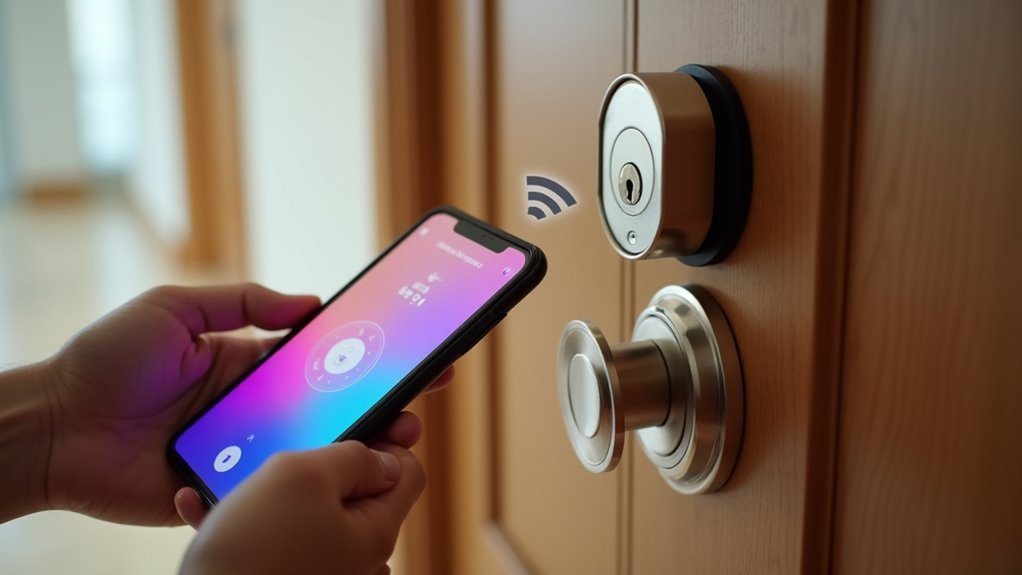
You’re probably tired of fumbling for keys every time you approach your front door, especially when your hands are full of groceries or you’re rushing to let someone in. Installing a mobile app door lock can transform your daily routine, but the setup process might seem intimidating at first glance. The good news is that most smart locks are designed with homeowners in mind, though there are several critical steps you’ll want to get right the first time to avoid frustrating complications later.
What Is a Mobile App Door Lock?
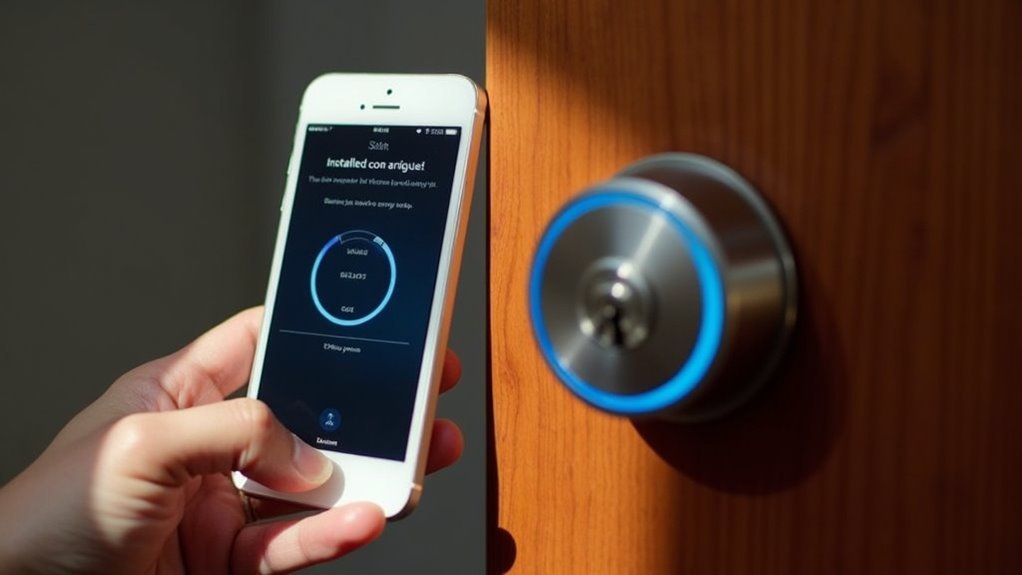
While traditional locks require physical keys that can be lost or forgotten, a mobile app door lock transforms your smartphone into a digital key that controls access to your home.
Your smartphone becomes the ultimate home key, eliminating the frustration of lost or forgotten traditional keys forever.
This smart locking system connects through Bluetooth or Wi-Fi technology, enabling keyless entry and remote access from anywhere with internet connectivity.
You can create digital keys for family members, friends, or service providers through the dedicated smartphone application.
These temporary or time-limited access codes eliminate the need for spare physical keys.
Your mobile app door lock enhances smart home security with features like tamper alerts, activity logs, and integration with other connected devices.
Most models offer straightforward installation that replaces your existing deadbolt, making this installation guide perfect for DIY enthusiasts.
Benefits of Mobile App-Controlled Smart Locks
Once you install a mobile app-controlled smart lock, you’ll discover how it eliminates the frustration of fumbling for keys while carrying groceries or racing to answer the door. These smart locks offer keyless entry through your smartphone, letting you access doors remotely with a simple tap.
You can generate temporary access codes through your mobile app to share with visitors, eliminating the need for spare keys. Your security improves with real-time notifications showing who enters and when.
| Feature | Traditional Locks | Smart Locks |
|---|---|---|
| Access Method | Physical keys | Mobile app/codes |
| Guest Access | Spare keys | Temporary codes |
| Activity Monitoring | None | Real-time logs |
Integration with voice assistants like Alexa adds automation convenience, while remote management provides peace of mind during travel.
Types of App-Enabled Smart Locks
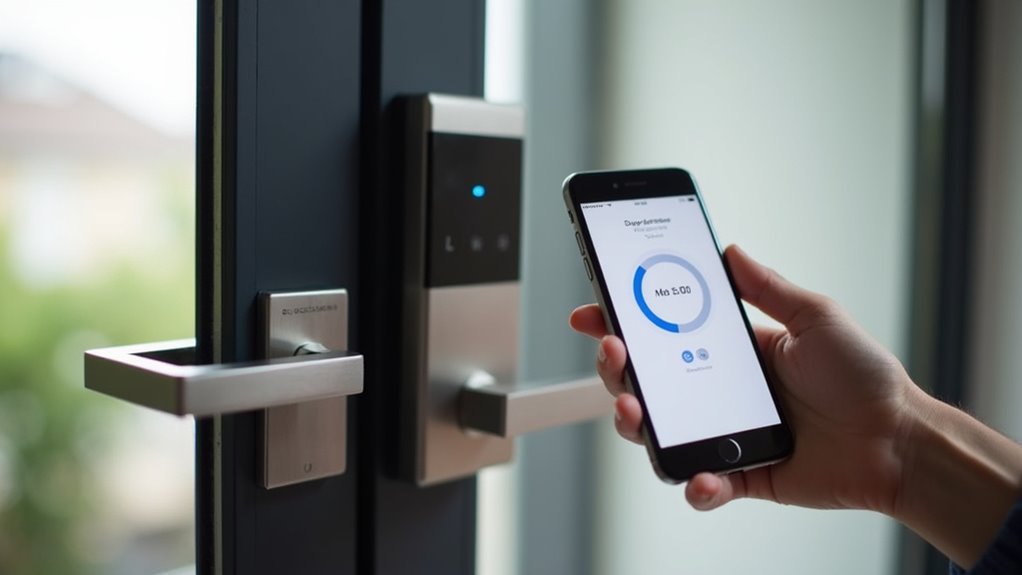
When you’re choosing an app-enabled smart lock, you’ll encounter three main categories that each offer distinct advantages for your home security setup.
WiFi connected lock systems provide the most extensive remote access, allowing you to control and monitor your door from anywhere with an internet connection.
Bluetooth proximity based locks and biometric app integration options each bring their own unique benefits that we’ll explore to help you select the right system for your needs.
WiFi Connected Lock Systems
Although smart locks come in various connectivity options, WiFi-connected systems offer the most extensive remote control capabilities for your home security needs. These Wi-Fi smart locks let you manage access through smartphone apps from anywhere with internet connectivity.
You’ll benefit from seamless integration with voice assistants like Amazon Alexa and Google Assistant for hands-free operation. However, you’ll need a stable WiFi connection for peak functionality.
| Feature | Benefit |
|---|---|
| Remote Access | Control from anywhere globally |
| Access Logs | Monitor entry/exit timestamps |
| Voice Control | Hands-free operation |
| Geofencing | Automatic proximity-based locking |
| App Integration | Centralized smart home management |
Your smartphone apps provide detailed access logs, showing who entered and when, enhancing your home security monitoring capabilities.
Bluetooth Proximity Based Locks
Bluetooth proximity-based locks revolutionize your daily routine by automatically opening as you approach your door with a registered smartphone.
You’ll appreciate their energy-efficient designs that deliver six months to a year of battery life, eliminating frequent maintenance concerns.
These smart locks integrate seamlessly with mobile apps, giving you thorough control over access management. You can create temporary codes for guests, monitor lock status, and receive real-time notifications directly on your phone.
Key security features protect your home:
- Advanced encryption technology prevents hacking attempts
- Protection against unauthorized access through secure protocols
- Activity logs track all lock/unlock events
- Smartphone registration guarantees only approved devices work
You’ll gain enhanced awareness of who accesses your home and when, making Bluetooth proximity-based locks an intelligent security investment for modern homeowners.
Biometric App Integration Options
Biometric app-enabled smart locks eliminate the hassle of carrying keys by using your unique physical characteristics—fingerprints or facial features—to grant access to your home. These locks provide seamless smartphone app integration, letting you monitor and control access remotely.
| Feature | Benefit |
|---|---|
| Multi-user storage | Store multiple fingerprints for family access |
| Advanced encryption | Protection against hacking attempts |
| Activity tracking | Monitor who enters and when |
Your biometric lock’s app integration offers powerful remote access capabilities and thorough monitoring of entry. You’ll receive real-time notifications when someone enters, create temporary access codes for guests, and review detailed activity logs. The smartphone app becomes your central control hub, managing everything from user permissions to security settings. With advanced encryption protocols protecting your data, you’re getting both convenience and robust security in one smart solution.
Choosing the Right Smart Lock for Your Home
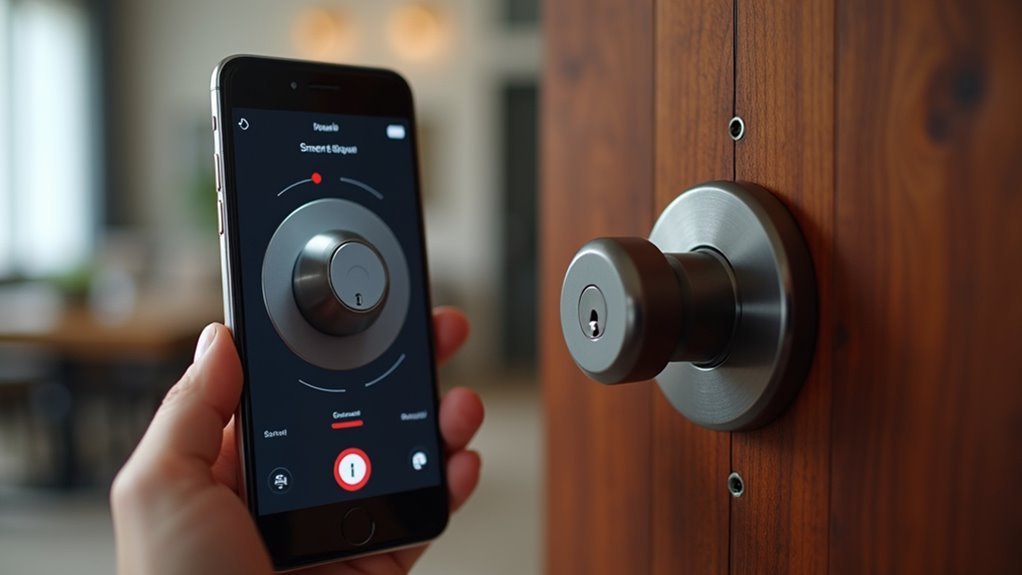
You’ll need to evaluate several key factors when selecting the perfect smart lock for your home’s unique requirements.
Start by comparing lock type options like deadbolts, lever handles, and retrofit models, then assess compatibility with your existing door hardware and home security systems.
Don’t overlook security features comparison—encryption standards, tamper alerts, and guest access capabilities can make or break your smart lock experience.
Lock Type Options
When selecting a smart lock for your home, several key factors will determine which model best suits your needs and lifestyle. Understanding your lock type options helps streamline the installation process and guarantees peak functionality.
Consider these primary smart lock categories:
- Keypad locks – Enable code entry for family members and guests
- Biometric models – Offer fingerprint recognition for enhanced security
- Smartphone-controlled systems – Provide seamless mobile app integration
- Hybrid options – Combine multiple access methods for flexibility
Smart locks require careful evaluation of security features like encryption technology and tamper alarms.
Compatibility with existing hardware determines whether you’ll need additional components such as Wi-Fi bridges.
Battery-operated models typically last six months to a year, while hardwired versions eliminate power concerns entirely.
Compatibility and Hardware
Smart lock selection extends beyond choosing features—matching the device to your specific door and home setup prevents installation headaches and guarantees reliable operation.
First, verify compatibility with your existing hardware by checking door type and thickness requirements. Standard doors accommodate most models, but unique configurations need careful consideration.
Evaluate connectivity requirements before purchasing. Some smart devices, like the Kwikset SmartCode 888, require Wi-Fi bridges or compatible security systems to function properly.
Factor these additional costs into your budget.
Consider your preferred power source during smart lock installation. Battery-operated models offer 6-month to one-year lifespans with low-battery alerts, while wired options eliminate replacement concerns.
For exterior installations, verify your chosen lock operates effectively in temperatures from below freezing to 140°F.
Security Features Comparison
Five critical security features separate basic smart locks from extensive home protection systems. When evaluating security options, you’ll want to prioritize encryption technology that shields against unauthorized digital breaches.
Modern smart locks should include tamper alarms that instantly notify you of physical manipulation attempts.
Key security features to compare include:
- Encryption protocols – AES 128-bit or higher for data protection
- Tamper detection – Motion sensors and breach alerts
- Access management – Temporary access codes with expiration controls
- Authentication methods – Multiple verification options available
Biometric locks offer the highest security level through fingerprint or facial recognition, eliminating key-related vulnerabilities.
You’ll also want temporary access codes functionality for managing guest entry without compromising long-term security. These features collectively determine whether your smart lock provides basic convenience or thorough protection.
Tools and Materials Needed for Installation
Before you begin installing your mobile app door lock, you’ll need to gather several essential tools and materials to guarantee a smooth setup process. Most smart lock manufacturers include basic tools in their installation kit, but you should verify you have everything required.
| Basic Tools | Materials | Digital Setup |
|---|---|---|
| Screwdriver | Smart lock unit | Smartphone/tablet |
| Measuring tape | Batteries | Mobile app downloaded |
| Level | Mounting hardware | WiFi network access |
| Drill | Wire strippers | User manual |
| Clean workspace | Electrical connectors | Network password |
For advanced smart locks requiring electrical connections, prepare wire strippers and connectors. Download the manufacturer’s mobile app on your smartphone before starting installation. Create a clean workspace around your door area to prevent losing small components during the setup process.
Removing Your Existing Door Lock
Start by gathering your screwdriver and creating a clear work area around your door. Removing your existing deadbolt or door lock requires careful attention to preserve components you might need later.
Locate the screws on your current lock’s interior side and carefully remove them with your screwdriver. Gently pull the deadbolt or doorknob apart from the door, keeping all pieces together for reference.
Follow these essential steps for complete removal:
- Remove strike plate screws from the door frame
- Inspect the door for debris or damage
- Organize all removed screws and components
- Check that the door opening is clean
After removing the existing lock system, you’ll have a clear workspace ready for your new smart lock installation.
Installing the New Smart Lock Hardware
Now that you’ve removed your old lock, you’ll start by mounting the new hardware plates according to your smart lock’s specifications.
Next, you’ll connect the interior and exterior components, ensuring all screws are properly tightened for a secure fit.
This installation process requires careful alignment to guarantee your smart lock operates smoothly once you’ve completed the setup.
Remove Old Lock Components
Gather your screwdriver and begin by unscrewing the existing door handle and deadbolt from your door. Store all screws safely for potential future use.
If you can’t locate the existing deadbolt screws, check your old lock’s manual for hidden component access. Clean the door edge thoroughly after removing components to prepare for installation.
Before proceeding, verify compatibility between your new smart lock and current door hardware:
- Check door thickness requirements
- Measure backset distance accurately
- Confirm bore hole diameter specifications
- Verify strike plate alignment needs
Follow the manufacturer’s instructions carefully during removal to prevent door or frame damage.
Make necessary door adjustments if compatibility issues arise. When you remove the existing hardware completely, inspect all mounting points for wear or damage that might affect your new smart lock’s performance and security.
Mount New Hardware Plates
Position the mounting plate against your door’s existing holes, checking that it sits perfectly level before securing it.
Use the screws from your installation kit to fasten the plate firmly with a screwdriver, making certain it’s securely attached to prevent wobbling during operation.
If your smart lock needs an adapter, install it on the mounting plate following the manufacturer’s instructions before attaching the lock.
Make sure the wing latches are open when connecting the smart lock to the mounting plate – this guarantees proper alignment and connection.
Once you’ve secured all hardware components, test the locking mechanism by operating it several times.
This final check confirms everything’s aligned correctly and functions smoothly before proceeding to the next installation step.
Connect Interior Exterior Parts
With your mounting plates secured and tested, you’re ready to install the main smart lock components. Now you’ll connect interior exterior parts to complete your smart lock installation.
Start by aligning the exterior panel with your prepared hole, making certain any wires pass through properly. Secure the exterior panel using the provided screws, making it flush against the door surface.
Next, connect the interior panel by carefully feeding wires through designated openings:
- Use appropriate connectors for secure wire connections
- Align interior panel properly with exterior components
- Fasten with provided screws for tight fit
- Make sure smooth operation throughout installation
Once you install your smart lock’s interior and exterior components, test the locking mechanism thoroughly to confirm it operates smoothly and securely before proceeding.
Setting Up Power Sources and Connectivity
Before your smart lock can protect your home, you’ll need to establish reliable power and connectivity.
First, identify your lock’s power source requirements. For battery-powered models, insert high-quality batteries as specified by the manufacturer—these typically last six months to a year. Keep spare batteries handy for replacements.
Next, establish your connection method. For Wi-Fi connectivity, position your lock within router range and follow the app instructions for pairing. Some locks require a Wi-Fi bridge like Nest Connect, which must be properly configured to communicate between your lock and home network.
For Bluetooth-enabled locks, activate your smartphone’s Bluetooth and follow the setup prompts in your mobile app to establish a secure connection with your smart lock.
Downloading and Installing the Mobile App
Once you’ve established power and connectivity, you’ll need to download your lock’s dedicated mobile app to complete the setup process.
Start by searching for your smart lock model’s specific mobile app in your device’s app store – either Apple App Store or Google Play Store.
Download the app while maintaining a stable internet connection to prevent installation interruptions.
After installation, open the app and create an account or sign in with existing credentials if you’ve used this service before.
The connection process typically involves these steps:
- Follow on-screen prompts to connect the app to your device
- Pair via Bluetooth when prompted
- Enter any required setup codes
- Test the initial connection
Once successfully connected, you’ll be able to customize security settings and configure access codes for household members and guests.
Pairing Your Lock With the App
After downloading your lock’s mobile app, you’ll need to establish a Bluetooth connection between your smartphone and the smart lock.
Enable Bluetooth on your device and position it close to the lock before selecting “Add Device” in the app to begin pairing.
Once the connection’s established, you can configure your access codes and complete the initial setup process.
Download Lock App
How do you connect your smart lock to your smartphone for seamless control? The first step involves finding and installing the correct mobile app for your specific smart lock model.
You’ll need to download the lock app from either the App Store or Google Play Store, depending on your device’s operating system.
After installation, you must create an account within the mobile app using your email address and a secure password. This account guarantees protected access to your smart lock’s features and settings.
Before beginning the pairing process, verify these essential requirements:
- Smartphone Bluetooth is enabled and functioning
- Strong Wi-Fi connection is available
- Smart lock is powered and within range
- App permissions for location and notifications are granted
Once these prerequisites are met, you’re ready to begin connecting your devices seamlessly.
Connect Via Bluetooth
While establishing your initial connection might seem complex, pairing your smart lock with the app through Bluetooth creates the foundation for reliable remote access.
First, verify your smart lock is powered on and position yourself within 30 feet of the device. Enable Bluetooth on your smartphone and open your mobile app. The app will automatically search for nearby devices, displaying your lock in the available connections list.
Select your smart lock from the list to begin the pairing process. You’ll likely need to enter a setup code or press the lock’s pairing button as prompted.
Once the connection establishes successfully, test the functionality by using the app to open your door remotely. This verification confirms your Bluetooth pairing worked correctly and you’re ready to enjoy convenient keyless access.
Configure Access Codes
Now that your smart lock pairs successfully with your mobile app, you can establish personalized access codes for different users. This configuration process allows you to create unique codes for family members, friends, or service providers while maintaining complete control over your home’s security.
Navigate to the access codes section within your mobile app to begin setting up individual user codes. You’ll find several customization options:
- Create temporary codes with specific expiration dates
- Set permanent codes for regular household members
- Assign user names to each code for easy identification
- Configure time-based restrictions for enhanced security
Access your security settings to enable notifications whenever someone uses their assigned code. This feature keeps you informed about all smart lock activity, ensuring you’re always aware of who enters your home.
Configuring Access Codes and User Permissions
Once you’ve successfully paired your smart lock with the mobile app, you’ll need to establish access codes and define user permissions to control who can enter your home.
Start configuring access codes by directing yourself to the user management section within your mobile app. Create unique codes for each user to maintain security and consider setting expiration dates for temporary guests.
The mobile app allows you to customize user permissions based on individual needs. You can grant full control to family members, limited access to service providers, or time-sensitive permissions for visitors.
Most apps provide access logs that send real-time notifications when someone uses their code, enhancing your home’s security monitoring.
Regularly review and update codes to maintain system integrity.
Testing Lock Functionality and Connectivity
After establishing your access codes and user permissions, you’ll want to thoroughly test your smart lock’s functionality to confirm reliable operation.
Begin testing lock functionality by operating the lock multiple times using both your physical key and mobile app to guarantee smooth performance.
Next, verify connectivity by attempting to lock and open your door remotely through the app. Confirm that your lock’s status displays accurately, showing real-time locked or opened positions.
Test remote locking and unlocking through your app while confirming the status display shows accurate real-time door positions.
If you encounter connectivity issues, try these troubleshooting steps:
- Restart both your smart lock and smartphone
- Verify the lock’s within Wi-Fi or Bluetooth range
- Check for firmware updates in your mobile app
- Test the connection from different distances
These steps will help you identify and resolve any operational problems before relying on your smart lock daily.
Troubleshooting Common Setup Issues
Even with careful preparation, you might encounter setup challenges that prevent your smart lock from connecting properly to your mobile app. First, verify your smartphone meets minimum OS requirements for ideal smart security functionality.
If your smart lock battery dies or shows low indicators, replace them immediately before attempting reconnection. Restart both your smartphone and router to resolve persistent connectivity issues affecting Wi-Fi or Bluetooth pairing.
Carefully follow the manufacturer’s installation instructions without skipping steps, as incorrect information often causes setup failures.
When problems persist, check the app’s troubleshooting section or user manual for specific solutions addressing common errors. These resources typically contain step-by-step fixes tailored to your device model and can quickly resolve most setup complications you’ll encounter.
Security Best Practices for App-Controlled Locks
Successfully setting up your smart lock represents just the beginning of protecting your home through mobile technology.
Installing your smart lock is only the first step in creating a comprehensive mobile-powered home security system.
You’ll need to implement thorough security measures to maximize protection against unauthorized access.
Start with these essential security foundations:
- Create strong passwords for your mobile app and enable two-factor authentication
- Regularly update both your app and smart lock firmware
- Monitor access logs consistently to track entry and exit activity
- Secure your Wi-Fi network security with robust passwords
Set temporary access codes for guests or service providers, ensuring these codes expire after use.
Consider establishing a separate network for your smart devices to reduce hacking risks.
Regular monitoring of access logs helps you identify unusual activity patterns, while firmware updates address potential vulnerabilities and enhance security features.
Frequently Asked Questions
How Do You Set up a Smart Door Lock?
You’ll download the manufacturer’s app, create an account, connect the lock to your network via Bluetooth then Wi-Fi, install batteries, program access codes, and test functionality.
How to Open a Door With Mobile?
You’ll open your door by launching your smart lock’s mobile app, then tapping the access button. Confirm your phone’s connected to Wi-Fi or Bluetooth and the lock’s powered and within range.
Are Electronic Door Locks Easy to Install?
Electronic door locks can be easy to install if you’re comfortable with basic tools and following instructions. However, you’ll face varying complexity levels depending on the model, especially with hardwired versions requiring professional help.
What Tools Do You Need to Install a Smart Lock?
You’ll need a screwdriver to remove your old lock and install the new one, plus a measuring tape for proper alignment. A level guarantees straight installation, and you might need a drill for mounting holes.




Leave a Reply