

You’ve probably dreamed of having seamless audio flowing through every room in your house, but commercial solutions cost thousands and lock you into proprietary ecosystems. Open-source multi-room audio changes everything—you’ll build a flexible system using affordable Raspberry Pi hardware and free software like Snapcast and Mopidy. This approach gives you complete control over your audio experience, but there’s a specific sequence of steps you must follow to avoid the pitfalls that derail most DIY projects.
What Is Multi-Room Open Source Audio
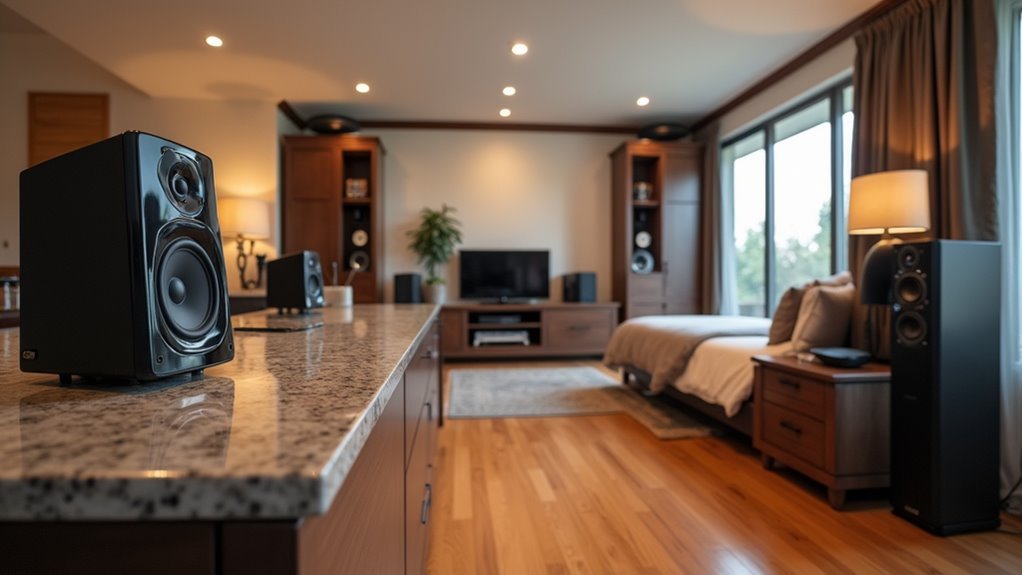
Multi-room open source audio transforms your home into a connected listening environment where you can stream music to different rooms simultaneously while controlling each zone independently.
Unlike expensive commercial systems, you’ll build your multi-room audio system using affordable components like Raspberry Pi devices running specialized software such as Mopidy or Volumio.
Build your own multi-room audio system with budget-friendly Raspberry Pi devices instead of costly commercial alternatives.
These open-source solutions give you complete flexibility to mix different brands and components according to your budget and preferences.
You’ll use protocols like Snapcast to achieve synchronized playback across rooms, ensuring seamless audio throughout your home.
The beauty lies in customization – you’re not locked into proprietary ecosystems. Community forums and GitHub repositories provide extensive support, helping you troubleshoot issues and optimize performance while keeping costs considerably lower than commercial alternatives.
Essential Hardware Components and Requirements
Building your multi-room audio system starts with selecting the right hardware components that’ll form the backbone of your setup.
You’ll need amplifiers to power your speakers, quality speakers for each room, and streaming devices to distribute audio content throughout your home.
Raspberry Pi devices excel as cost-effective streaming clients, running software like Volumio or Mopidy for seamless playbook. For enhanced audio quality, pair them with HiFiBerry DACs that deliver superior sound output.
Your network infrastructure is equally critical for your multi-room audio setup.
You’ll need a robust Wi-Fi network or wired connections for larger homes to guarantee stable streaming.
Consider major brand solutions like Yamaha MusicCast alongside DIY alternatives using open-source software like Snapcast for customizable, budget-friendly essential hardware components.
Raspberry Pi Setup for Audio Streaming

You’ll need to configure your Raspberry Pi as the foundation for your multi-room audio system by selecting appropriate hardware, installing the necessary software, and establishing proper network connections.
Start by choosing between a standard Raspberry Pi 4 or Pi Zero 2 W, then add a quality DAC like the HiFiBerry DAC+ Zero for enhanced audio output.
Once you’ve gathered your components, you’ll install Raspberry Pi OS Lite and configure both Mopidy for streaming services and Snapcast for synchronized multi-room playback.
Hardware Requirements Selection
When selecting hardware for your multi-room audio streaming setup, the Raspberry Pi stands out as the most versatile and cost-effective foundation.
You’ll find the Raspberry Pi Zero W perfect for wireless audio clients due to its affordability, while the Raspberry Pi 4 delivers superior processing power for demanding applications.
For enhanced audio quality, consider adding a HiFiBerry DAC+ Zero, which provides dedicated digital-to-analog conversion specifically designed for Pi setups. This DAC notably improves sound output compared to the built-in audio jack.
When building your multi-room audio system, you’ll need one Pi per zone. The Raspberry Pi Zero handles basic streaming excellently, but upgrade to Pi 4 models for zones requiring higher-fidelity output or additional processing demands.
Each unit runs independently while maintaining synchronized playback across your entire setup.
Software Installation Process
Once you’ve assembled your Raspberry Pi hardware, installing the software stack transforms your device into a capable audio streaming node.
Begin the software installation process by flashing Raspberry Pi OS Lite onto your SD card for headless operation. After booting, install the Mopidy music server using `sudo apt install mopidy`.
Configure Mopidy by editing `/etc/mopidy/mopidy.conf` to set audio output preferences and music source access.
For multi-room audio capabilities, download Snapcast using `wget https://github.com/badaix/snapcast/releases/download/v0.20.0/snapclient_0.20.0-1_armhf.deb` to synchronize playback across devices.
Test your installation by playing audio through connected speakers and configure clients through the Iris web interface to guarantee proper synchronization.
Network Configuration Setup
Network stability forms the backbone of reliable multi-room audio streaming, making proper configuration essential before your first playback session. You’ll need to configure your Raspberry Pi’s network settings to maintain consistent connections whether you’re using Wi-Fi network or wired ethernet.
Configure your Wi-Fi credentials by editing `/etc/wpa_supplicant/wpa_supplicant.conf` with your network details. For wired connections, make certain DHCP is enabled or assign static IP addresses to prevent conflicts when multiple Pis stream audio simultaneously.
| Connection Type | Recommended Use |
|---|---|
| Wired Ethernet | High-bandwidth rooms |
| 5GHz Wi-Fi | Medium-distance streaming |
| 2.4GHz Wi-Fi | Long-range coverage |
Test connectivity using `ping` commands to verify each Pi can communicate with your router and other devices before proceeding with audio configuration.
Installing and Configuring Snapcast Server

Setting up your Snapcast server forms the foundation of your multi-room audio system.
Begin installing your Snapcast server by downloading the Debian package with `wget https://github.com/badaix/snapcast/releases/download/v0.20.0/snapserver_0.20.0-1_armhf.deb`, then install it using `sudo dpkg -i snapserver_0.20.0-1_armhf.deb`.
After installation, you’ll need to configure your server by editing `/etc/snapserver.conf`. This file controls your audio input sources and stream settings for ideal multi-room audio performance.
Start your Snapcast server with `sudo systemctl start snapserver` and verify it’s running using `sudo systemctl status snapserver`.
Install Snapclient packages on each device throughout your rooms, configuring them to connect to your server’s IP address.
Test your setup by playing audio and confirming synchronized playback across all connected clients.
Setting Up Mopidy Music Server
With your Snapcast server running and clients connected, you’ll want to feed quality audio content into your multi-room system. Mopidy serves as the perfect music server for your multiroom audio setup, streaming from local files and online services directly to your audio devices.
Install Mopidy on your Raspberry Pi using the command line with necessary dependencies. Configure it by editing `/etc/mopidy/mopidy.conf` to specify audio output settings and integrate streaming services.
| Configuration Aspect | Details |
|---|---|
| Installation Method | Command line on Raspberry Pi |
| Config File Location | `/etc/mopidy/mopidy.conf` |
| Supported Sources | Spotify, SoundCloud, local files |
| Web Interface | Iris extension recommended |
| Multi-room Integration | Works with Snapcast for synchronization |
Enhance Mopidy with extensions like Iris for web control and regularly update for peak performance.
HiFiBerry DAC Configuration and Audio Quality
While your Raspberry Pi’s built-in audio output works for basic setups, dedicated DAC hardware like the HiFiBerry DAC+ Zero transforms your multi-room system into a high-fidelity listening experience.
This HiFiBerry DAC delivers exceptional audio quality with 112 dB signal-to-noise ratio and just 0.003% harmonic distortion, supporting 24-bit/192 kHz resolution for crystal-clear sound.
Installation’s straightforward—connect directly to GPIO pins without additional wiring or power requirements.
Hardware setup couldn’t be simpler—the DAC+ Zero plugs directly into your Raspberry Pi’s GPIO header with zero external components needed.
You’ll need to edit `/boot/config.txt` to enable I2S audio output, ensuring proper recognition. The built-in headphone amplifier provides direct connection without quality compromise.
For multi-room systems, the DAC+ Zero integrates seamlessly with Mopidy, Volumio, and Snapcast, enabling synchronized playback across zones while maintaining superior audio fidelity throughout your home.
Creating Multiple Audio Zones Throughout Your Home
Building multiple audio zones transforms your home into a personalized listening environment where each room operates independently or in perfect synchronization. Your multi-room system starts with strategically placing Raspberry Pi streaming devices throughout your house, each connected to amplifiers or speakers in designated areas.
| Component | Recommended Option | Function |
|---|---|---|
| Streaming Device | Raspberry Pi 4 | Zone controller and audio processing |
| Software Platform | Snapcast + Mopidy | Synchronized streaming and music management |
| Amplifier | Yamaha MUSICCAST RX-V6A | Multi-zone audio distribution |
Open-source solutions like Volumio and Mopidy integrate seamlessly with Snapcast, creating cost-effective zones without proprietary restrictions. You’ll configure each zone’s network settings and audio outputs carefully, ensuring stable streaming quality. This approach lets you play different sources simultaneously across rooms or sync everything for whole-house audio experiences.
Home Assistant Integration and Control
You’ll need to configure your SnapCast server within Home Assistant to enable centralized control of your multi-room audio system.
Setting up the integration requires adding the SnapCast component to your configuration.yaml file and specifying your server’s IP address and port.
Once connected, you can customize your Home Assistant dashboard with dedicated audio control cards that let you manage volume levels, group speakers, and switch audio sources across all your zones.
SnapCast Server Setup
Home Assistant transforms your SnapCast setup from a simple audio streaming system into a sophisticated smart home component with centralized control and automation capabilities.
Once you’ve configured your snapcast server on your main Raspberry Pi running Mopidy, you’ll need to add the SnapCast integration to Home Assistant. This enables seamless control over your multi-room audio system through Home Assistant’s unified interface.
Navigate to Settings > Devices & Services, then add the SnapCast integration by providing your server’s IP address and port. You’ll immediately see all connected clients appear as media players in Home Assistant.
This integration allows you to adjust volume levels, select different audio sources, and create automation rules. You can group speakers, schedule music playback, and even trigger audio announcements based on sensor data or time-based events.
Dashboard Configuration Options
The dashboard serves as your central command center for orchestrating audio across every room in your home.
Home Assistant’s dashboard configuration options let you design intuitive layouts that streamline multi-room audio control. You’ll customize media players through YAML files, creating seamless interfaces for managing Snapcast synchronization and zone grouping.
Your dashboard configuration options include:
- Zone Controls – Group and ungroup speakers with simple toggles
- Volume Sliders – Adjust individual room levels or master volume
- Source Selection – Switch between Spotify Connect and Google Cast inputs
- Playback Controls – Play, pause, skip, and shuffle from any interface
The community shares proven configurations you can adapt for your setup.
You’ll integrate various streaming protocols while maintaining synchronized playback across zones, ensuring your multi-room system responds intuitively to every command.
Spotify Connect and Streaming Service Configuration
While Bluetooth connections often suffer from range limitations and audio dropouts, Spotify Connect transforms your multi-room audio experience by streaming music directly from your smartphone or computer to compatible devices over Wi-Fi. You’ll need to integrate this streaming service with open-source platforms like Volumio or Snapcast for synchronized playback across zones.
| Platform | Required Component | Configuration Steps |
|---|---|---|
| Mopidy | Spotify plugin | Install mopidy-spotify, configure credentials |
| Volumio | Spotify plugin | Enable plugin, authenticate account |
| Snapcast | Snapserver setup | Configure audio sources, sync clients |
| Home Assistant | Music Assistant | Add Spotify integration, map zones |
| MPD | Spotify daemon | Install spotifyd, configure playback |
Install specific plugins within your chosen platform, authenticate your Spotify account, and guarantee stable Wi-Fi connectivity for seamless multi-room audio streaming throughout your home.
Building Client Devices for Each Room
You’ll need to choose the right hardware for each room based on your audio quality requirements and budget constraints.
Raspberry Pi units like the Zero W or Pi 4 work perfectly as streaming clients when paired with quality DAC boards such as HiFiBerry’s offerings for superior sound output.
Your hardware selection directly impacts how you’ll configure audio outputs, so consider whether you need digital connections, analog outputs, or wireless streaming capabilities for each specific room.
Hardware Selection Strategies
Building effective client devices for each room requires careful consideration of both performance needs and budget constraints. Your hardware selection strategies will determine the overall quality and reliability of your audio systems.
For basic streaming needs, you’ll find the Raspberry Pi Zero W offers an excellent cost-to-performance ratio. However, if you need enhanced capabilities for complex audio processing, the Pi 4 delivers superior performance.
Consider these essential hardware components:
- High-quality DACs like HiFiBerry DAC+ for superior audio output
- Stable network connections via Wi-Fi or wired Ethernet
- Control interfaces using rotary encoders and OLED displays
- Audio software such as Snapcast or Mopidy for synchronized streaming
Match your Raspberry Pi selection to each room’s specific requirements while maintaining consistent audio quality throughout your multi-room setup.
Audio Output Configuration
Three critical configuration steps will transform your selected hardware into fully functional audio clients.
First, install audio streaming software like Mopidy or Volumio on each Raspberry Pi device to handle playback duties. These platforms provide the foundation for your multiroom system’s audio processing capabilities.
Second, integrate HiFiBerry DACs such as the DAC+ Zero to guarantee high-fidelity digital-to-analog conversion. Connect these directly to your Raspberry Pi devices for peak audio quality throughout your setup.
Third, implement Snapcast for synchronized playback across rooms. Install the Snapcast server on your central music host, then configure Snapcast clients on each room’s device. Connect all clients to the same Wi-Fi network for seamless communication.
Test each configuration by verifying audio playback and confirming proper client-server communication.
Synchronizing Audio Playback Across Zones
When you’re setting up a multi-room audio system, achieving perfect synchronization across all zones becomes the cornerstone of a seamless listening experience.
Snapcast emerges as the go-to solution for synchronizing audio playback, streaming simultaneously to multiple clients with minimal latency.
To enhance your multi-room system’s performance:
- Connect all devices to the same Wi-Fi network and configure them to identical audio sources.
- Combine open-source solutions like Volumio or Mopidy with Snapcast for improved functionality.
- Use wired connections for critical zones to reduce latency in larger homes.
- Test and adjust buffer sizes in Snapcast configuration to minimize audio delays.
You’ll find that proper synchronizing requires attention to network stability and configuration details for ideal results.
Adding Airplay 2 Support for Ios Devices
You’ll want to integrate AirPlay 2 protocol into your multi-room setup to enable seamless streaming from iOS devices.
This integration allows you to leverage Apple’s native audio streaming while maintaining synchronization across all your zones.
The key is configuring your open source audio system to act as an AirPlay 2 receiver that works harmoniously with your existing multi-room infrastructure.
AirPlay 2 Protocol
Since Apple’s AirPlay 2 protocol revolutionized wireless audio streaming, it’s become the gold standard for multi-room audio systems, particularly for iOS device users. This wireless streaming protocol enables synchronized playback across multiple compatible devices, creating seamless audio experiences throughout your home.
AirPlay 2’s key capabilities include:
- High-resolution audio streaming – supports formats up to 24-bit/48kHz for superior sound quality
- Multi-room synchronization – streams audio simultaneously to multiple devices without lag
- Siri voice control – manage playback across rooms using simple voice commands
- Easy network integration – connects effortlessly with existing home networks
You’ll find AirPlay 2 works seamlessly with iOS devices, Macs, and compatible platforms.
For DIY enthusiasts, installing Shairport Sync on Raspberry Pi devices transforms them into AirPlay 2 receivers, enabling cost-effective multi-room audio solutions.
Ios Device Integration
How can you seamlessly integrate your iPhone or iPad into an open-source multi-room audio system? Installing Shairport Sync transforms your Raspberry Pi into an AirPlay receiver, enabling direct music streaming from iOS devices.
You’ll need to configure the software by modifying its configuration file to integrate with your existing audio output system.
Once configured, Shairport Sync supports multiple simultaneous streams, allowing you to play different music across various zones in your setup.
Test the integration by selecting your Shairport Sync device from your iOS device’s AirPlay list and verify audio plays through connected speakers.
For peak performance, regularly update your installation and monitor community forums for troubleshooting tips and AirPlay 2 enhancements to keep your system running smoothly.
Multi-Room Synchronization
While basic AirPlay streaming works well for single-room setups, achieving true multi-room synchronization with iOS devices requires integrating AirPlay 2 support into your existing audio system.
Shairport Sync transforms your Raspberry Pi into an AirPlay receiver, enabling seamless audio streaming from Apple devices. You’ll need to install essential dependencies like `libavahi-compat-libdnssd-dev` and `libasound2-dev` before compiling the software.
Follow these steps for proper multi-room synchronization:
- Clone and compile the Shairport Sync repository
- Modify your Snapcast configuration to recognize the new stream
- Restart both server and client services
- Test streaming from your iOS device
Once configured, you’ll enjoy synchronized playback across all rooms, delivering music anywhere in your home without lag or audio delays.
Troubleshooting Common Setup Issues
Although multi-room open source audio systems offer incredible flexibility and cost savings, you’ll likely encounter some bumps during initial setup and configuration. When you troubleshoot these systems, start by verifying all devices connect to the same Wi-Fi network for proper synchronization and connectivity.
| Issue | Solution |
|---|---|
| No audio output | Check software audio settings and device configurations |
| Playback lag/delays | Adjust buffer settings or use wired connections |
| Device disconnections | Verify Wi-Fi network consistency across all zones |
| Poor sound quality | Update software/hardware components to latest versions |
| Sync problems | Use diagnostic tools to identify network or hardware issues |
Your audio software’s diagnostic tools help identify whether problems stem from network issues, hardware malfunctions, or incorrect settings, making resolution faster and more targeted.
Expanding Your System With Advanced Features
Once you’ve established a stable multi-room setup, you can transform your system into a sophisticated entertainment hub by integrating streaming services, voice control, and smart home features.
Your multi-room audio system becomes incredibly versatile when you add these advanced capabilities:
- Streaming Integration – Connect Spotify, YouTube Music, and internet radio directly to your setup using Mopidy or similar software.
- Voice Assistant Control – Integrate Google Home or Amazon Alexa for hands-free music management across zones.
- Apple AirPlay Support – Implement Shairport Sync to enable seamless casting from iOS devices, competing with Sonos speakers’ native functionality.
- Smart Scheduling – Configure sleep/wake timers and automated playlists for enhanced convenience.
Raspberry Pi devices running Snapcast maintain synchronized playback while supporting these features, ensuring your open-source solution rivals commercial systems in both functionality and audio quality.
Frequently Asked Questions
What’s the Total Cost to Build a Basic 3-Room Audio System?
You’ll spend around $150-300 for a basic three-room setup. You’ll need a Raspberry Pi ($35-50), amplifiers ($30-60 each), and speakers ($25-75 per room). Don’t forget power supplies and cables.
Can I Use Existing Speakers Instead of Buying New Ones?
You can definitely use your existing speakers with a multi-room audio system. You’ll just need amplifiers or smart adapters to connect them to your network, saving significant money on new speaker purchases.
How Much Power Consumption Should I Expect From Running Continuously?
You’ll consume about 5-15 watts per device when actively playing music, dropping to 2-5 watts during idle periods. Raspberry Pi-based systems are particularly energy-efficient, costing roughly $10-30 annually per room.
Will This System Work With Amazon Alexa or Google Assistant?
You can integrate most open-source audio systems with Alexa or Google Assistant through plugins or custom skills. You’ll need to configure voice commands and guarantee your system supports the required APIs for seamless operation.
Can Multiple Users Control Different Rooms Simultaneously From Separate Phones?
You can control different rooms simultaneously from separate phones. Each user’s device connects independently to the system, allowing personalized control without interfering with others’ music choices or volume settings.




Leave a Reply