
Your smart home hub knows more about you than you realize—from your daily routines to personal conversations. While these devices offer incredible convenience, they’re also collecting vast amounts of data that could be vulnerable to hackers or misused by companies. You’ve likely kept the default settings when you set up your hub, but those factory configurations aren’t designed with your privacy in mind. The good news? You can take control with a few strategic adjustments that’ll dramatically improve your security.
Change Default Administrator Passwords
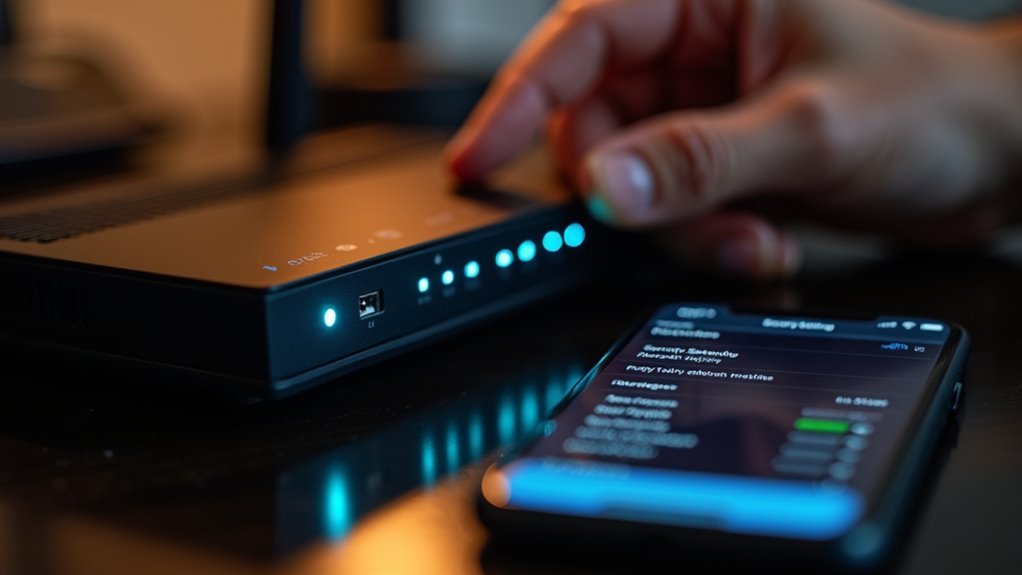
One of the most critical steps you can take to secure your home hub is changing the default administrator password immediately after setup.
Factory-set passwords are publicly available, making your smart devices vulnerable to cyberattacks. Hackers often exploit these widely known credentials as their first point of entry.
Default passwords are like leaving your front door unlocked with a sign advertising free entry to cybercriminals.
Access your hub’s security settings and create a strong password that’s at least eight characters long. Include uppercase letters, lowercase letters, numbers, and symbols for maximum protection. Avoid predictable patterns or personal information that attackers might guess.
Don’t stop at your home hub—change default passwords for all connected smart devices and apps.
Regular password updates further reduce unauthorized access risks, ensuring your entire smart home network remains secure against potential threats.
Enable Two-Factor Authentication
While strong passwords provide your first line of defense, two-factor authentication (2FA) creates an additional security barrier that makes unauthorized access markedly more difficult.
Even if hackers obtain your password, they’ll still need the second verification factor to breach your account.
Most smart home platforms include these security features, making 2FA implementation straightforward. You’ll receive one-time codes through your phone or authenticator app whenever you log in.
Choose authenticator apps like Google Authenticator or Authy over SMS-based methods, as they’re more secure against interception attempts.
Enabling 2FA notably reduces unauthorized access risks and protects your personal information from cyber threats.
Review your 2FA settings regularly to guarantee continued protection as security landscapes evolve.
Review Voice Activity Recording Settings
Your Google Home device continuously records and stores your voice interactions, creating a detailed history of your commands and conversations.
You can access this recording history through the My Activity page in your Google Account settings or directly through the Google Home app by tapping your personal icon.
Take control of your privacy by regularly reviewing these stored conversations and deleting any recordings you don’t want Google to keep.
Access Recording History
How much do you really know about what your Google Home has been listening to and storing? Your device captures every voice command, question, and conversation it hears, creating a detailed digital footprint of your daily interactions.
To access recording history and review what’s been collected, navigate to your Google Account’s My Activity page. Here, you’ll find an extensive log of all voice recordings, timestamps, and associated commands. This transparency feature empowers you to understand exactly what data Google has gathered from your smart speaker.
Regular monitoring of this activity log is essential for maintaining privacy and security with your Google Home device. You can listen to individual recordings, review transcripts, and gain valuable insights into your device’s data collection patterns.
Delete Stored Conversations
Once you’ve reviewed your Google Home’s recording history, taking control means actively deleting stored conversations and adjusting your voice activity settings.
You can delete stored conversations by opening the Google Home app, tapping your personal icon, and selecting My Activity. From there, you’ll find specific voice recordings that you can remove individually to enhance your privacy.
For thorough protection, toggle off Web and App activity in your Google account settings. This prevents Google Home from saving future voice recordings entirely.
Additionally, disable personal results in your Google Home settings to stop the device from accessing sensitive information like shopping lists and schedules.
Regular management of these voice activity recordings guarantees you maintain control over your personal data and minimize privacy risks.
Disable Personal Results Access
While Google Home’s personal results feature offers convenient access to your calendar, shopping lists, and reminders, it can also expose sensitive information to anyone within earshot of your device.
Disabling personal results prevents Google Home from reading out confidential data through voice commands, greatly enhancing your privacy.
To disable this feature, tap your profile picture in the Google Home app, then select “Manage your Google Account.”
Navigate to “Privacy and personalization” and scroll to the “Personal results” section in search settings. Toggle it off to guarantee your personal data remains secure.
This setting blocks access to schedules, shopping lists, and other personalized information.
Regularly reviewing these privacy controls helps maintain control over your data and reduces exposure to potential breaches.
Configure Guest Mode Restrictions
You’ll want to establish clear boundaries for what guests can access when they use your Google Home Hub.
Start by limiting which smart home devices they can control and restricting their ability to join your primary network.
These restrictions guarantee your personal data stays protected while still allowing visitors to enjoy basic functionality.
Limit Guest Device Access
When visitors connect to your home network, they can potentially access all your connected devices and personal data unless you configure proper restrictions.
Enable Guest Mode to create a separate Guest network that isolates visitors from your main network, eliminating security risks to your smart home devices and personal files.
In Guest Mode, guests can browse the internet but can’t see or control your connected devices. You can customize restrictions to limit access to specific services and set automatic time limits that disconnect guests after predetermined durations. This prevents unauthorized lingering connections.
Regularly review your Guest Mode settings to verify they match your current security preferences. Update restrictions as needed and remove access for previous guests to maintain ideal protection for your home hub.
Restrict Network Permissions
After establishing Guest Mode, you’ll need to configure specific restrictions that control what visitors can access within your network.
Smart home systems let you customize network permissions by specifying which devices guests can interact with and what actions they’re allowed to perform. You should limit guest access to essential functionalities only, preventing them from viewing or controlling your personal devices and settings.
Guest mode creates a barrier between visitors and your main network, reducing security risks from potentially compromised guest devices.
Configure permissions to block access to sensitive information like security cameras, door locks, and personal data. Regularly review these network permissions as you add new devices or when guest access requirements change, ensuring your smart home remains protected while still providing convenient access for visitors.
Manage Connected Device Permissions
Managing your connected device permissions requires constant vigilance, as each smart device in your home network can potentially access far more data than necessary for basic operation.
You’ll need to regularly audit and adjust these permissions through your home hub’s management interface to maintain preferred privacy protection.
Start by disabling unnecessary features like voice commands or geolocation services unless they’re essential for device functionality.
Next, examine privacy settings on each device and app to limit third-party data sharing.
Follow these essential steps to manage permissions effectively:
- Review device permissions during initial setup and grant only core functional access
- Monitor connected devices regularly and remove suspicious or unnecessary ones
- Check privacy settings periodically to maintain minimal data sharing with external parties
Set Up Voice Recognition Profiles
Setting up voice recognition profiles on your Google Home device creates a personalized security layer that prevents unauthorized access to your private information.
You’ll need to open the Google Home app, tap your profile icon, and navigate to “Assistant settings” to enable voice match. Train your device by repeating specific phrases, which improves accuracy for personal commands and results.
Voice recognition enhances privacy by ensuring only recognized voices can access sensitive data like calendars or shopping lists. Your Google Home supports up to six profiles, allowing household members to maintain individual privacy settings while enjoying personalized interactions.
This feature effectively secures your device against unauthorized voice commands from guests or strangers.
Control Location Data Sharing
Beyond securing voice access, your Google Home device continuously collects location data that can compromise your privacy if left unchecked.
Smart devices often enable location tracking by default, making it essential you actively review and adjust these privacy settings.
Take control of your location data sharing with these steps:
- Disable unnecessary location access – Turn off location sharing unless absolutely required for device functionality.
- Review app permissions regularly – Limit location access to only essential applications and features.
- Check default settings – Many devices automatically enable location tracking, so verify your current configurations.
Educate yourself on how your specific smart devices use and share location data.
This knowledge empowers you to make informed decisions about your privacy settings and data sharing practices, ultimately protecting your personal information from potential exposure.
Adjust Microphone and Camera Settings
You’ll want to turn off recording features you don’t actually need to minimize privacy risks on your Google Home Hub.
Start by disabling unnecessary microphone and camera functions through the device settings menu.
You can also configure voice recognition controls to limit who can access personal information and trigger device responses.
Disable Unnecessary Recording Features
While smart home devices offer convenience through voice commands and visual monitoring, their always-listening microphones and cameras can compromise your privacy if left unconfigured.
Taking control of recording features guarantees your personal conversations and activities remain private.
Google Home’s privacy settings allow you to manage voice recordings effectively. Access the app to turn off activity history saving and prevent future recordings from being stored.
Additionally, review your My Activity section to delete past voice recordings, maintaining a cleaner data footprint.
Consider these essential steps for maximum privacy:
- Disable microphone functionality when the device isn’t needed
- Adjust camera settings to limit visual recording capabilities
- Regularly review and configure privacy controls
These proactive measures help you maintain control over what data smart home devices collect and share.
Configure Voice Recognition Controls
When you configure voice recognition controls properly, you’ll prevent unauthorized users from accessing your smart home devices through voice commands. Set your smart speaker to recognize only specific voices in your household, creating a barrier against unwanted access to personal features and information.
Take control of your microphone settings by regularly reviewing and adjusting them. Mute or disable the microphone when you’re not actively using your device to minimize unintended recordings that could compromise your privacy.
Similarly, disable video recording capabilities on camera-equipped devices unless you’re actively using them.
Restrict access to personal information through device settings, keeping only necessary functionalities active. Regularly audit app permissions for your voice-activated devices to limit data collection and sharing practices, giving you greater control over your personal data.
Create Separate Network for Smart Devices
As smart devices multiply throughout your home, establishing a separate network for these gadgets becomes essential for protecting your personal data.
Creating this dedicated network isolates your smart devices from computers, phones, and other devices containing sensitive information.
The FBI recommends network segmentation to enhance security since hackers often target less secure smart devices as entry points. A guest network works perfectly for this purpose, preventing potential vulnerabilities from affecting your main network.
Here’s what you’ll protect by implementing this strategy:
- Personal files and banking information on primary devices
- Work-related data from unauthorized access
- Family photos and private communications
You’ll also gain better traffic management and monitoring capabilities, allowing you to detect security threats more effectively while maintaining a secure home environment.
Regular Firmware and Software Updates
You’ll need to keep your smart home devices updated with the latest firmware and software to close security gaps that hackers can exploit.
Most devices offer automatic update settings that’ll handle this process behind the scenes, but you shouldn’t rely on automation alone.
You’ll also want to establish a routine for manually checking updates, especially for older devices that mightn’t support automatic patching.
Automatic Update Settings
Because smart home devices continuously face evolving cyber threats, keeping their firmware and software current stands as one of your most effective defenses.
Enabling automatic updates on your security systems and smart devices guarantees you’ll receive critical patches without manual intervention.
Most modern smart home devices offer automatic update functionality that you should activate immediately.
Here’s how to maximize this protection:
- Enable automatic updates in each device’s settings menu or companion app
- Schedule updates during off-peak hours to avoid disrupting daily routines
- Verify update completion by checking version numbers periodically
When automatic updates aren’t available, you’ll need to manually check for firmware updates regularly.
Create a monthly schedule to review all devices, confirming your entire smart home ecosystem remains protected against the latest vulnerabilities and threats.
Manual Update Monitoring
While automatic updates provide excellent baseline protection, they don’t cover every device or catch every release. Manual update monitoring becomes essential for maintaining robust security and privacy across all your connected devices.
You’ll need to regularly check manufacturer websites and device settings for missed updates. Many smart home devices won’t automatically notify you when critical security patches become available, leaving vulnerabilities exposed.
Create a monthly schedule to review firmware versions on all your connected devices.
Consider using tracking tools or apps that monitor firmware versions across your smart home ecosystem. Document each device’s current firmware version and last update date.
This proactive approach guarantees you’re not relying solely on automatic systems to protect against emerging cyber threats targeting your home network.
Monitor Connected Third-Party Services
Many smart home enthusiasts don’t realize how extensively their devices share data with external services.
Most homeowners remain unaware that their smart devices continuously transmit personal data to countless third-party companies without explicit consent.
When you monitor your home hub’s connections, you’ll discover that research shows 72 out of 81 IoT devices transmit information to third-party services.
This widespread data sharing creates significant privacy risks that require your active management.
To protect your privacy, you should implement these essential practices:
- Regular audits – Review connected third-party services monthly to identify unnecessary or forgotten integrations.
- Permission management – Use your hub’s privacy settings to limit data sharing to only what’s essential for functionality.
- Policy review – Read privacy policies of connected services to understand how they collect and use your data.
Don’t forget to revoke access for unused services immediately.
Configure Privacy Settings for Each Room
Since each room in your home serves different purposes and handles varying levels of sensitive information, you’ll need to configure privacy settings on a room-by-room basis. Access each smart device’s app to limit data sharing and enhance security controls.
| Room Type | Privacy Actions |
|---|---|
| Bedroom/Office | Disable voice activation and camera access |
| Living Areas | Adjust location settings, limit geolocation tracking |
| Kitchen/General | Set strict hub permissions for essential data only |
Disable features that compromise privacy in areas where sensitive conversations occur. Review location settings for devices throughout your home, minimizing exposure unless absolutely necessary. Set permissions for smart devices connecting to your hub, ensuring only essential data collection. Regularly monitor and update these privacy settings when room usage changes or new concerns arise.
Disable Unnecessary Data Collection Features
After establishing privacy controls for individual rooms, you’ll want to tackle the broader issue of unnecessary data collection happening across your entire smart home system. Your hub likely collects far more information than needed for basic functionality.
Start by reviewing your hub’s privacy settings to identify features you can safely disable:
- Voice recognition and location tracking – Turn off these features unless absolutely necessary for your smart home devices.
- Personal results options – Disable access to personal information for responses.
- Web and App Activity – Stop voice recording storage and interaction logging.
Don’t forget to audit app permissions regularly, restricting data collection to essential functions only.
Read your hub’s privacy policy thoroughly to understand what information gets collected and shared, then adjust settings to minimize unnecessary data gathering.
Frequently Asked Questions
What Are at Least Two Methods That Designers of Smart Devices Use to Keep Things Secure?
You’ll find designers implement 128-bit symmetric encryption to protect device communication and use secure pairing methods during setup. They also provide regular firmware updates to patch vulnerabilities and keep your devices protected against threats.
How to Secure Home Automation?
You’ll secure home automation by changing default passwords, creating separate Wi-Fi networks for IoT devices, updating firmware regularly, enabling two-factor authentication on apps, and reviewing privacy settings to limit unnecessary data collection.
How Can Smart Home Devices Compromise Your Privacy and Security?
Your smart devices can expose you through default passwords hackers easily crack, unauthorized data sharing with third parties, location tracking that reveals your whereabouts, and network vulnerabilities that let criminals access your personal information.
How Can Your Wifi Leave Your Smart Home Vulnerable to Cybercrime?
Your WiFi becomes a cybercrime gateway when you don’t change default router passwords, use outdated WEP security, or leave UPnP enabled, allowing hackers to infiltrate your network and compromise connected smart devices.




Leave a Reply