
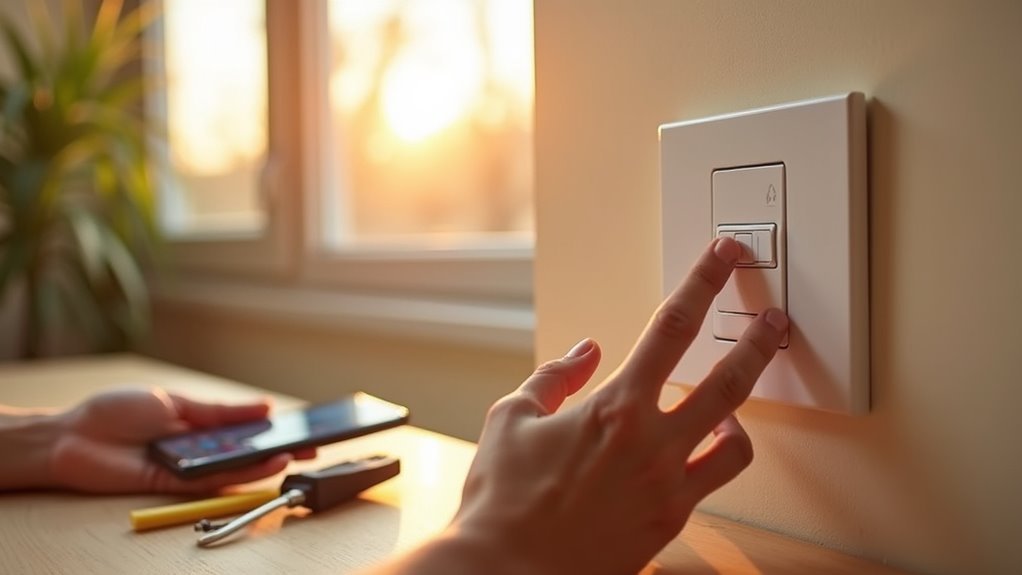
You’ve probably noticed how your home feels more welcoming when lights automatically turn on as darkness falls, but setting up sunset-triggered smart lighting isn’t as straightforward as it might seem. While the concept sounds simple—lights activate when the sun goes down—there’s actually a complex web of device compatibility, hub configurations, and automation rules that can make or break your system’s reliability and performance.
Understanding Smart Lighting Automation Basics
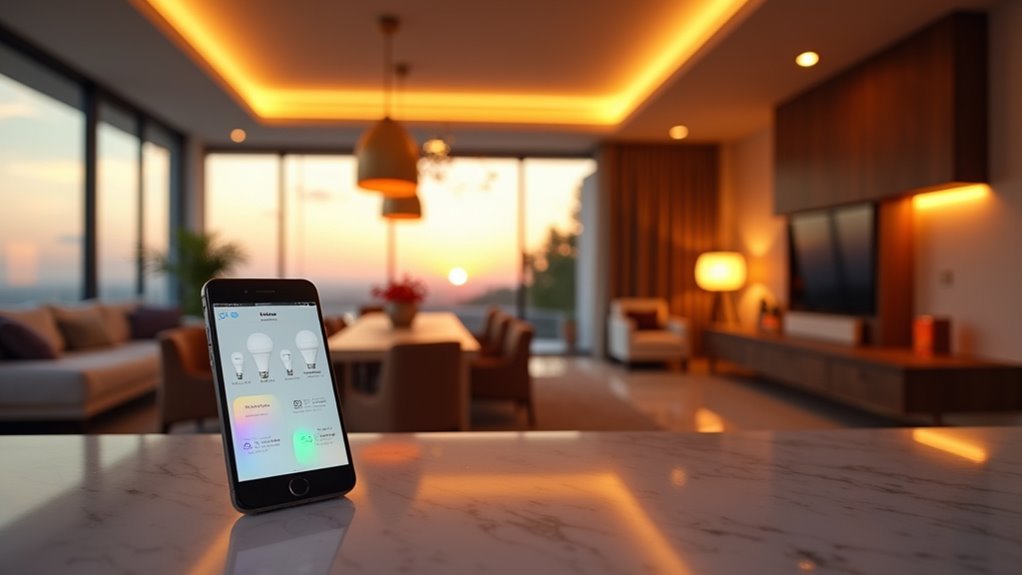
Smart lighting automation transforms your home’s lighting into an intelligent system that responds to your daily rhythms and environmental changes.
You can configure your smart lights to automatically respond to natural light shifts, particularly sunset, creating dynamic schedules that adapt to seasonal daylight variations throughout the year.
Using Z-Wave switches or compatible smart bulbs, you’ll establish routines that trigger at sunset time, enhancing both convenience and energy efficiency.
Z-Wave technology enables effortless sunset automation, delivering enhanced convenience while reducing energy consumption through intelligent lighting control.
These systems integrate seamlessly with platforms like SmartThings, where community-shared experiences help troubleshoot and optimize your sunset-triggered routines for reliable performance.
Applications like SharpTools support sunset-based conditions, letting you program specific actions—turning lights on at sunset and off at your predetermined time, creating personalized automation that matches your lifestyle.
Choosing the Right Devices for Sunset Automation
While sunset automation can work with various smart devices, selecting the right hardware guarantees your lighting system responds reliably when daylight fades.
You’ll want smart lights that support Z-Wave or ZigBee protocols for seamless integration. Look for bulbs and switches with local execution capabilities to minimize delays. Devices like Aqara T2 bulbs and Aqara Switch H2 EU offer built-in sunrise/sunset triggers, simplifying your setup.
| Feature | Requirement | Example Devices |
|---|---|---|
| Protocol Support | Z-Wave/ZigBee | Aqara T2, Switch H2 EU |
| Execution Type | Local processing | Smart bulbs with hubs |
| Backup Sync | Third-party services | Mars Tech compatible |
| Updates | Regular firmware | Latest software support |
Consider devices that sync with third-party services like Mars Tech for power interruption stability. Always verify firmware update capabilities to maintain peak performance.
Setting Up Your Smart Home Hub and Apps
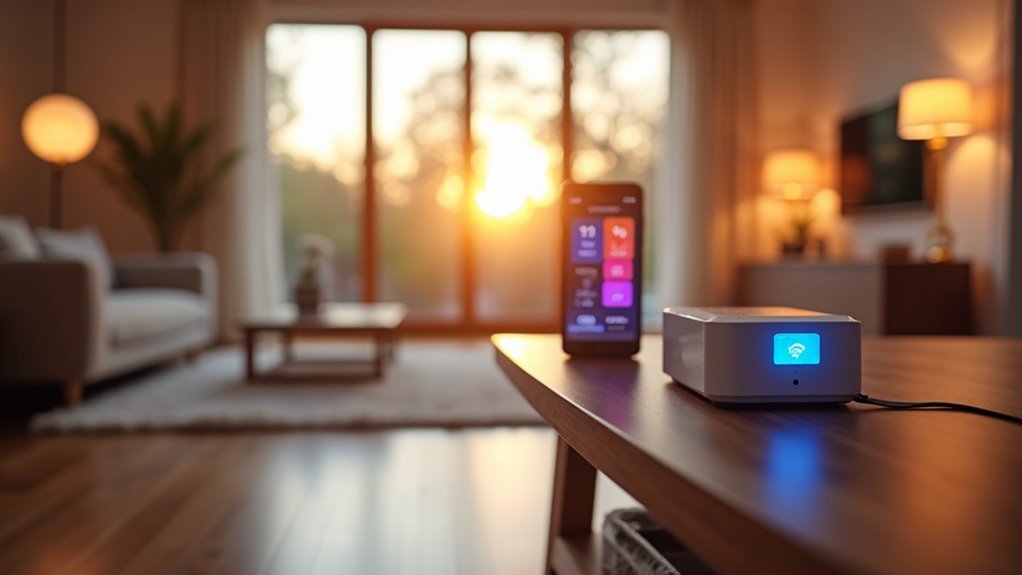
You’ll need to guarantee your smart home hub meets compatibility requirements for sunset automation before connecting it to your Wi-Fi network.
Start by updating your hub’s firmware to the latest version, whether you’re using SmartThings, Aqara Home, or another compatible system.
Next, you’ll want to install essential companion apps like Mars Tech or IFTTT that’ll enable sunset-triggered automations and expand your device compatibility options.
Hub Compatibility Requirements
Before diving into smart lighting installation, verify your smart home hub supports both Z-Wave and Wi-Fi protocols for seamless device integration.
Smart lighting automation depends on robust hub compatibility to guarantee reliable performance across different device manufacturers and communication standards.
Your hub must meet these essential requirements:
- Protocol Support – Confirm compatibility with both Z-Wave and Wi-Fi devices to accommodate various smart lighting products like Aqara T2 bulbs and H2 switches.
- Local Execution – Verify your hub supports local automation processing to maintain faster response times for sunrise and sunset triggers.
- Cloud Integration – Ascertain compatibility with reliable cloud services like Mars Tech for consistent sunrise and sunset functionality, even during power interruptions.
These compatibility features create a foundation for dependable automated lighting that responds accurately to daily light cycles.
App Integration Setup
With your hub’s compatibility confirmed, the next step involves downloading and configuring the Aqara Home app to establish centralized control over your smart lighting devices.
Install the app on your smartphone and create an account to begin connecting your Aqara T2 light bulbs and H2 EU switches. Follow the app’s guided setup process to add each device to your smart home network.
For enhanced automation capabilities, integrate your system with third-party platforms like IFTTT or Node-RED. These services enable advanced sunset-triggered routines when direct app integration is limited.
Consider incorporating compatible services such as Mars Tech to create reliable automation that maintains lighting functionality during power disruptions. This multi-platform approach guarantees your smart home lighting system operates seamlessly across various conditions.
Configuring Sunrise and Sunset Triggers
Since natural lighting changes throughout the day, configuring sunrise and sunset triggers creates the most intuitive smart lighting experience by automatically adjusting your home’s illumination to match the sun’s schedule.
Here’s how to set up effective sunset triggers:
- Choose reliable automation services like Mars Tech that adapt to local sunset times and maintain operation during power outages, ensuring consistent performance year-round.
- Configure app-based triggers through platforms like Aqara Home or SmartThings by setting actions that respond to sunset events, allowing dynamic adjustments as seasonal timing changes.
- Implement virtual switches for complex routines that require specific time offsets or multiple lighting zones, providing additional flexibility in your automation setup.
Regularly test your sunset-triggered routines to confirm they’re operating correctly and adjust seasonally as sunset times shift throughout the year.
Creating Time-Based Lighting Schedules
While sunrise and sunset triggers provide excellent natural lighting automation, you’ll often need more precise control over when your lights activate throughout the day.
Creating effective time-based schedules requires combining sunset times with specific off-times to establish thorough routines. Set your lights to turn on automatically as daylight diminishes, then program them to switch off at designated times like 11:30 PM.
You’ll want to establish multiple routines for different lighting needs throughout your home. Use virtual switches to manage these events more reliably, especially with devices that don’t adjust timing dynamically.
Automation platforms like SharpTools can combine multiple lighting rules into cohesive operations. Remember to regularly test and adjust your schedules, accounting for geographical variations that affect sunset timings in your location.
Combining Multiple Automation Rules
As your smart lighting system grows more sophisticated, you’ll need to combine multiple automation rules to create seamless lighting experiences throughout your home. Merging sunset-triggered smart lighting with time-based schedules requires careful coordination to prevent conflicts.
Here’s how to optimize your combined automation rules:
Smart lighting automation requires strategic rule coordination to prevent conflicts and ensure seamless operation throughout your home.
- Eliminate redundant triggers – Confirm each rule has distinct conditions to avoid lights turning off multiple times or conflicting commands.
- Use platforms like SharpTools – Create cohesive rules that incorporate both sunset/sunrise triggers and specific time events for thorough control.
- Test in real-time scenarios – Adjust combined rule conditions based on actual performance to confirm reliability.
Consider your geographical location when setting sunset triggers for accurate timing.
Streamline automation by merging compatible conditions, reducing unnecessary complexity in your rule logic while maintaining effective lighting control.
Testing and Troubleshooting Your Setup
Most smart lighting automation issues stem from improper initial testing, making systematic verification crucial for long-term reliability.
Start by confirming your Aqara Home app routines are properly configured with Mars Tech for consistent sunset-triggered actions. Watch your lights’ actual behavior at sunset and adjust conditions based on real-time results to eliminate redundancies.
If you’re using SharpTools, verify that sunset triggers and specific time events like 11:30 PM shutoffs don’t overlap, preventing unintended actions.
Document any issues you encounter during testing—this helps with community troubleshooting and provides valuable insights into common challenges.
Keep your smart devices updated with the latest firmware, as updates often resolve bugs affecting sunset timing and overall automation functionality.
Regular maintenance guarantees peak smart lighting performance.
Optimizing Performance for Seasonal Changes
Since daylight hours shift dramatically throughout the year, your smart lighting routines need seasonal adjustments to maintain peak performance.
The right setup requires proactive management to handle changing sunset times effectively.
Here’s how to optimize your system:
- Switch to local execution routines instead of cloud-based automations for better reliability and faster response times, especially in areas with unstable internet connectivity.
- Create virtual switches to manage complex timing adjustments, enabling you to easily add positive or negative offsets as seasons change without rebuilding entire routines.
- Document your changes in a spreadsheet tracking sunset times and adjustments across different lighting setups for streamlined seasonal management.
Don’t forget to regularly update device firmware to prevent syncing issues and maintain compatibility with your seasonal automation adjustments.
Frequently Asked Questions
How to Set Hue Lights to Turn on at Sunset?
Open your Philips Hue app and select ‘Routines,’ then ‘Lighting.’ Choose sunset as your trigger, customize the timing offset if needed, and guarantee your Hue Bridge is connected to your network.
Can You Set Smart Lights to Turn on at a Certain Time?
You can absolutely set smart lights to turn on at specific times using automation routines in apps like SmartThings or Aqara Home. Create scheduled routines with exact times for precise lighting control.
How to Make Sunset LED Lights?
You’ll need smart LED bulbs like Aqara paired with automation apps such as IFTTT or SharpTools. Set sunset triggers based on your location, update firmware, and test thoroughly to guarantee they activate automatically at dusk.
How Do I Turn on Govee App at Sunset?
You can’t automatically turn on the Govee app at sunset. Instead, open the app, go to Timer settings, select Sunset option, and your lights’ll automatically activate at sunset daily.




Leave a Reply