

You’ve followed all the setup instructions, but your smart doorbell still won’t connect to your network. The flashing lights indicate it’s trying, yet something’s preventing that essential link between your device and Wi-Fi. While the solution might seem straightforward, several hidden factors could be sabotaging your connection attempts. Before you consider returning the doorbell or calling technical support, there are specific troubleshooting steps that’ll likely resolve your connectivity issues.
Wi-Fi Network Signal Strength Issues
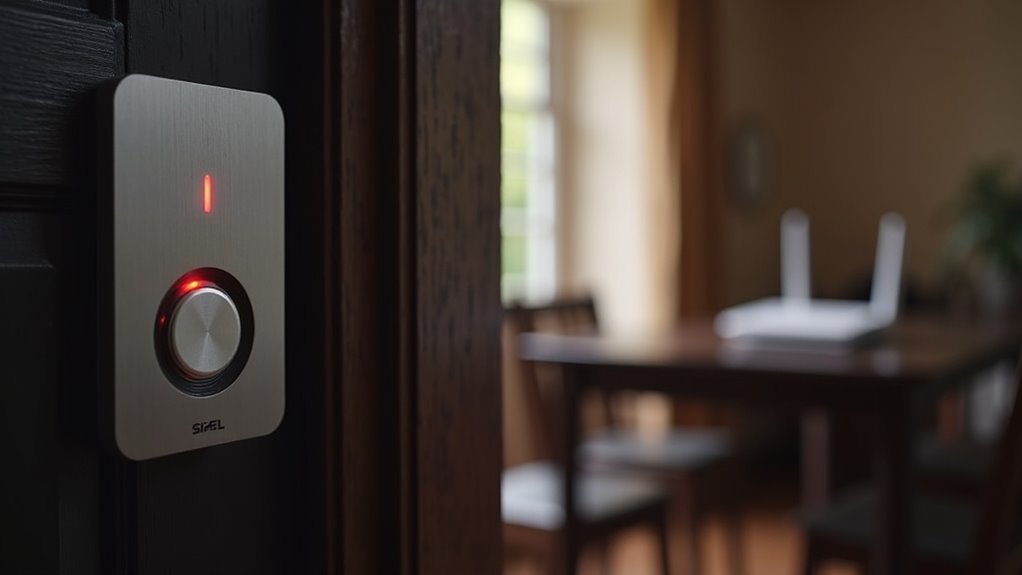
When your smart doorbell refuses to connect, weak Wi-Fi signal strength often emerges as the primary culprit.
You’ll want your doorbell positioned within 10-15 feet of your router for ideal performance. Dense materials like brick walls, metal appliances, or furniture between your doorbell and router can dramatically weaken signals, creating connectivity problems.
Physical obstructions aren’t your only concern. Other wireless devices, including baby monitors and microwaves, regularly interfere with Wi-Fi signals.
You can combat these issues by upgrading to a dual-band router, which lets your doorbell choose between the 2.4 GHz band for longer range or the faster 5 GHz band for closer connections.
Don’t overlook checking your doorbell transformer’s power output, as insufficient power can compound signal strength problems.
Incorrect Network Password Entry
Even though you’ve confirmed strong Wi-Fi signal strength, your doorbell still won’t connect if you’re entering the wrong network password. This common issue prevents your doorbell button from accessing the internet and functioning properly.
When entering your network credentials, follow these essential steps:
- Verify case sensitivity – Wi-Fi passwords are case-sensitive, so double-check that uppercase and lowercase letters match exactly.
- Check for extra spaces – Remove any hidden characters or spaces that might’ve been accidentally added when typing.
- Reset if necessary – After multiple failed attempts, factory reset your doorbell button to start the setup process fresh.
If your doorbell was previously connected but stopped working, your network password may have changed recently, requiring reconfiguration with updated credentials.
Router Compatibility Problems
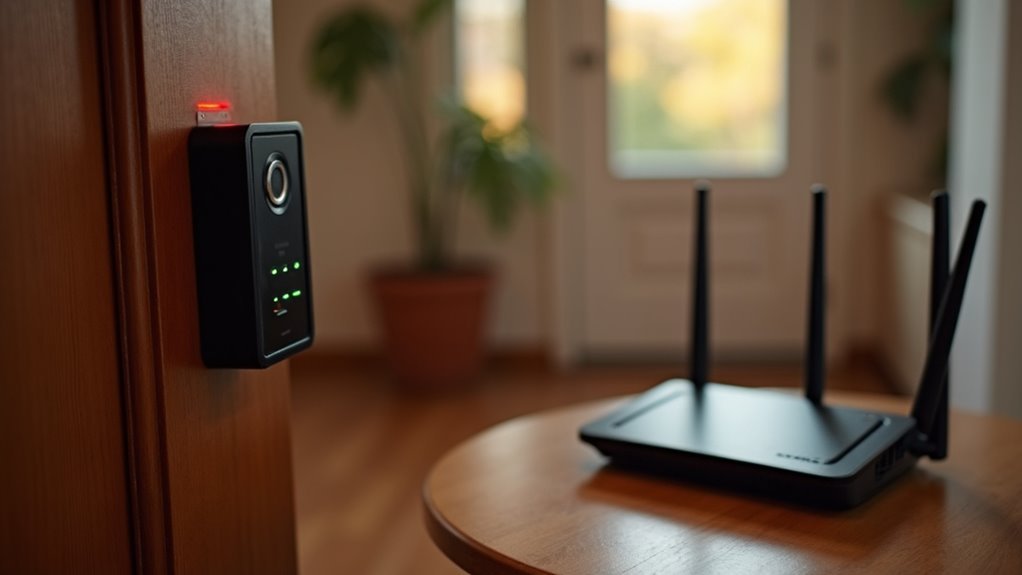
Beyond password issues, your router itself might be blocking your doorbell’s connection attempts. Many smart doorbells only support 2.4 GHz networks, while your router broadcasts both 2.4 GHz and 5 GHz bands. You’ll need to verify your doorbell connects to the correct frequency.
Most smart doorbells require 2.4 GHz networks, so check your router’s frequency bands if connection fails.
Check if MAC address filtering is enabled on your router – this security feature might prevent your doorbell from joining the network. Add your doorbell’s MAC address to the allowed devices list.
Older routers may lack support for newer security protocols like WPA3 that some doorbell models require.
Additionally, recent firmware updates can introduce compatibility issues. If your doorbell chime isn’t responding, interference from microwaves or baby monitors operating on the same frequency could be disrupting the signal strength between your doorbell and router.
Mobile Device Bluetooth Settings
Your mobile device’s Bluetooth settings can make or break your doorbell’s connection process.
You’ll need to enable Bluetooth properly, turn off features that interfere with the pairing process, and restart your device’s connection if problems arise.
These simple adjustments often resolve stubborn connectivity issues that prevent your smart doorbell from linking to your home network.
Enable Bluetooth Properly
When your doorbell won’t establish a connection, the culprit often lies within your mobile device’s Bluetooth settings. Proper Bluetooth configuration acts like a transformer, converting your connection troubles into successful pairing.
Follow these essential steps:
- Navigate to settings and toggle Bluetooth on – Make certain it’s fully activated, not just showing as enabled.
- Disconnect previously paired devices – Clear old connections that might interfere with your doorbell’s pairing process.
- Restart your device after enabling Bluetooth – This refreshes connections and eliminates temporary glitches.
Keep your phone within 10-12 inches of the doorbell during setup for best connectivity.
If you’re still experiencing persistent issues, consider resetting the doorbell completely to re-establish the Bluetooth pairing process from scratch.
Disable Interfering Features
While enabling Bluetooth helps with initial pairing, certain mobile device features can actually hinder your doorbell’s Wi-Fi setup process.
Bluetooth can interfere with your Wi-Fi connection, causing your mobile device to attempt connections with nearby Bluetooth devices instead of maintaining the stable network connection your doorbell needs.
You’ll want to disable Bluetooth on your mobile device before starting the setup process. This frees up network resources and allows for smoother communication between your doorbell and phone.
If you’re experiencing connection issues, temporarily turn off Bluetooth and reconnect to your Wi-Fi network.
Don’t forget to check other settings like Airplane Mode, which can also cause unintended interference with your Wi-Fi connection during setup.
Restart Device Connection
Restarting your mobile device’s connection often resolves stubborn pairing issues that persist despite other troubleshooting steps.
When standard solutions fail, a fresh start can eliminate temporary glitches affecting your device’s ability to restart your doorbell connection.
Follow these steps to refresh your device connection:
- Power cycle your mobile device – Turn it off completely for 60 seconds, then power it back on to clear temporary system files and refresh network connections.
- Enable airplane mode temporarily – Activate airplane mode, then turn on Bluetooth and Wi-Fi while keeping other wireless signals disabled to reduce interference.
- Position yourself close to the doorbell – Bring your device within 10-12 inches during setup to guarantee ideal signal strength for successful pairing.
Interference From Nearby Electronic Devices
Your doorbell’s connectivity issues might stem from electronic devices competing for the same 2.4 GHz frequency band in your home.
Baby monitors, microwaves, and cordless phones can create signal disruption patterns that interfere with your doorbell’s communication to the router.
You’ll need to identify these common interference sources and take steps to minimize electronic conflicts for a stable connection.
Common Interference Sources
Why does your smart doorbell keep losing its connection despite having a strong Wi-Fi network? The common reasons often involve interference from everyday household devices that share the same frequency spectrum as your doorbell.
Your wireless doorbell operates on the 2.4 GHz band, making it vulnerable to signal disruption from various sources around your home:
- Baby monitors and cordless phones – These devices frequently use identical frequencies, creating direct competition for bandwidth and causing connection drops.
- Microwave ovens – When operating, microwaves emit electromagnetic radiation that can temporarily block Wi-Fi signals, especially during cooking cycles.
- Large metal appliances – Refrigerators, washing machines, and HVAC units can reflect or absorb wireless signals, creating dead zones near your doorbell’s location.
Identifying these interference sources helps you troubleshoot connectivity issues effectively.
Signal Disruption Patterns
When electronic devices operate near your doorbell, they create predictable interference patterns that can help you pinpoint connection problems.
You’ll notice these disruptions follow specific timing cycles that match your household device usage. Baby monitors typically cause constant interference while active, creating steady signal degradation.
Microwaves generate intense but brief disruptions during cooking cycles, causing temporary connection drops. Cordless phones create interference bursts during calls, especially on 2.4 GHz networks.
These interference-causing devices often work together, compounding connectivity issues during peak usage times.
You’ll experience the strongest disruptions when multiple devices operate simultaneously, particularly in the evening when your family uses various electronics.
Physical barriers like walls amplify these patterns by trapping and reflecting interfering signals, creating dead zones where your doorbell struggles to maintain stable connections.
Minimizing Electronic Conflicts
Understanding these interference patterns helps you take targeted action to reduce electronic conflicts around your doorbell.
You’ll need to identify which devices compete for the same frequency bands as your doorbell chime system.
Here are three essential steps to minimize electronic interference:
- Relocate conflicting devices – Move baby monitors, microwaves, and cordless phones at least 10 feet away from your doorbell and router to reduce signal overlap.
- Switch frequency bands – Configure your doorbell to use the 5 GHz band instead of the crowded 2.4 GHz frequency where most household electronics operate.
- Install Wi-Fi extenders – Place extenders strategically between your router and doorbell to strengthen the signal and overcome interference from nearby electronics.
Regular testing after each adjustment guarantees peak doorbell chime performance.
Outdated Doorbell Firmware
Although your smart doorbell may seem to function normally, outdated doorbell firmware often creates invisible barriers that prevent successful network connections.
Manufacturers regularly release updates to fix bugs and improve Wi-Fi performance, addressing connectivity problems you’re experiencing.
Check your manufacturer’s website or app for available updates and installation instructions.
Don’t rely solely on automatic updates—manually verify you’re running the latest version.
Outdated firmware doesn’t just cause connection issues; it creates serious security vulnerabilities that expose your doorbell to unauthorized access.
Modern firmware updates typically include enhanced Wi-Fi connectivity features that resolve network compatibility problems.
While some doorbells update automatically when connected, you should proactively check for updates to guarantee ideal performance and security protection for your smart home device.
Distance Between Doorbell and Router
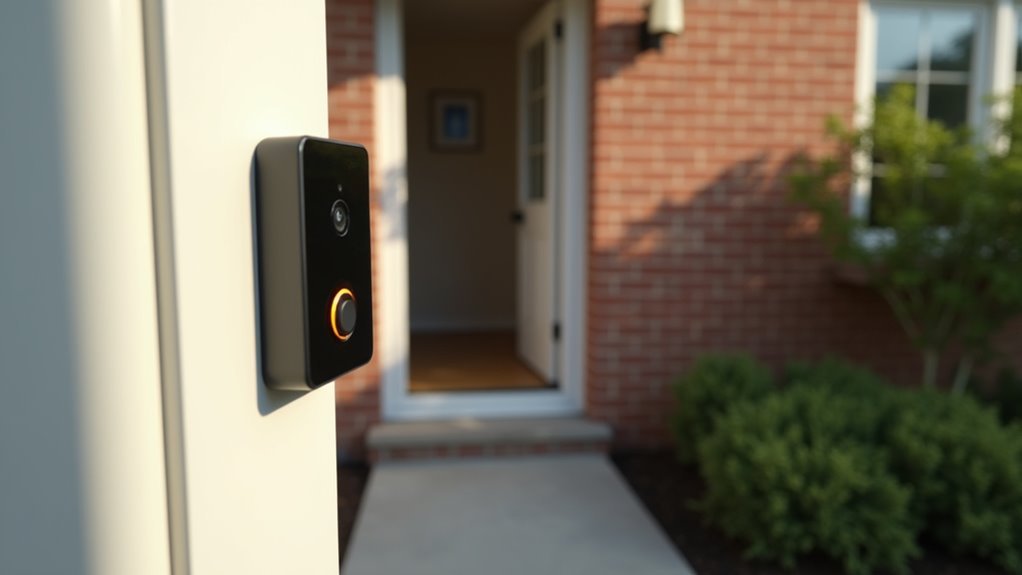
Even with updated firmware, your doorbell’s physical distance from your router creates major connectivity hurdles that prevent reliable network access.
The distance between doorbell and router greatly impacts Wi-Fi signal strength. Most doorbells work effectively within 30-50 feet indoors, but walls, floors, and furniture weaken signals considerably.
Here’s how to enhance your connection:
- Position during setup – Keep your doorbell within 10-15 feet of the router during initial configuration to establish a stable connection.
- Minimize obstructions – Remove or relocate large furniture and avoid thick walls between your doorbell and router.
- Extend your range – Install a Wi-Fi extender if your doorbell’s location exceeds the ideal distance from your router.
Environmental interference from microwaves, cordless phones, and other devices can further reduce effective range, making strategic placement even more critical.
Network Frequency Band Conflicts
When your doorbell operates on the same 2.4 GHz frequency as your microwave, baby monitor, or cordless phone, signal interference disrupts the connection and prevents reliable communication with your router.
Network frequency band conflicts occur when multiple devices compete for the same bandwidth, causing your smart doorbell to struggle with connectivity.
While 5 GHz offers faster speeds and less interference, its shorter range mightn’t reach your doorbell if your router’s positioned far away.
Your dual-band router lets you choose between frequencies, but selecting the wrong one creates connection failures. If you’re using 5 GHz and your doorbell’s too distant, it’ll fail to connect.
Regular optimization of your Wi-Fi settings, including selecting the appropriate frequency band for your doorbell’s location, eliminates these connectivity issues.
Mobile App Permission Settings
Your doorbell’s connection problems might stem from restricted mobile app permissions that block essential functions.
You’ll need to grant your doorbell app access to location services, which helps identify nearby networks, plus Bluetooth permissions for initial device pairing.
Additionally, you must enable network access rights so the app can communicate with your home Wi-Fi and complete the setup process.
Location Services Access
If you’ve enabled Bluetooth and Wi-Fi but your doorbell still won’t connect, location services might be the culprit.
Your doorbell app requires location services access to determine your proximity to the device during setup, which helps it locate and connect more effectively.
Without proper location services access, you’ll likely encounter connection errors or setup failures.
Here’s how to fix this:
- Check your device settings – Navigate to privacy or location settings on your Android or iOS device
- Enable Location Services – Turn on the main location services toggle if it’s disabled
- Grant app permissions – Confirm your doorbell app has specific permission to access location services
Once you’ve verified these settings, restart the app and attempt the connection process again.
Bluetooth Connection Permissions
Still experiencing connection troubles after checking location services? Your doorbell app needs bluetooth connection permissions to communicate with your device during setup and operation.
Without these permissions, the app can’t detect your doorbell, causing connection failures.
To enable bluetooth connection permissions on Android, navigate to “Settings” > “Apps” > [App Name] > “Permissions” and toggle Bluetooth on.
For iOS devices, go to “Settings” > [App Name] and confirm the Bluetooth toggle is enabled.
When Bluetooth is disabled, your app simply can’t establish the necessary communication bridge with your doorbell.
This results in failed setup attempts and ongoing connectivity issues.
Ensuring bluetooth connection permissions are properly configured is essential for successful doorbell operation and maintaining a stable connection between your mobile device and smart doorbell.
Network Access Rights
Beyond bluetooth permissions, network access rights serve as another critical gateway that can prevent your doorbell from establishing a proper connection. Your mobile app needs proper network access rights to communicate effectively with your doorbell and maintain stable connectivity.
Check these essential network access rights settings:
- Location Services – Enable location permissions as many doorbells require this data to function correctly during setup and operation.
- VPN Settings – Disable any active VPN connections that might interfere with your doorbell’s internet access and cause connectivity problems.
- Smart Network Switch – Turn off this Android feature to prevent automatic switching to weaker networks that could disrupt the connection process.
Regularly updating these network access rights resolves most connectivity issues and notably improves your doorbell’s overall performance.
Power Supply and Battery Issues
Power problems often serve as the primary culprit behind doorbell connectivity issues. Your transformer must deliver 10 to 20 volts for proper functionality—if it’s below 16 volts, you’ll need a replacement to resolve power supply issues.
Check your battery-powered doorbell’s batteries regularly, as dead or weak ones cause connectivity problems that disrupt performance.
Examine wiring connections between your doorbell button and chime unit. Loose or frayed wires interrupt electrical flow, creating persistent connection failures.
Don’t overlook regular maintenance of your transformer and chime unit, since overheating or electrical faults lead to significant malfunctions.
For rechargeable doorbells, battery capacity gradually degrades over time, affecting your device’s ability to maintain consistent connections.
Monitor and recharge batteries regularly to prevent connectivity interruptions.
Network Security Configuration Problems
Your doorbell’s connection problems often stem from network security settings that block or interfere with device communication.
Router firewalls can prevent your doorbell from accessing the network, while incorrect WiFi password authentication will stop the initial connection entirely.
Additionally, network frequency band conflicts occur when your doorbell only supports 2.4GHz but you’re trying to connect it to a 5GHz band.
WiFi Password Authentication Issues
When you’re struggling to connect your doorbell to WiFi, password authentication problems often top the list of culprits.
Even minor errors can prevent successful connections, leaving you frustrated.
Here are three common password-related issues to check:
- Outdated credentials – Your doorbell might be attempting to connect using an old password if you’ve recently updated your network settings.
- Typing errors – A single incorrect character during setup will block authentication entirely.
- Incompatible special characters – Some doorbell devices don’t recognize certain symbols in passwords.
Additionally, verify your doorbell supports your current security settings.
Many devices struggle with WPA3 encryption.
If you’re using dual-band wifi routers, confirm your doorbell is connecting to the 2.4 GHz band, which offers better compatibility than 5 GHz frequencies.
Router Firewall Blocking Devices
Beyond password problems, router firewalls often block smart doorbells from joining your network entirely. Your router’s security settings may mistakenly identify your doorbell as a threat, automatically blocking its MAC address or device type. When router firewall blocking devices occurs, you’ll need to access your router settings to whitelist your doorbell or temporarily lower security levels during setup.
| Issue | Cause | Solution |
|---|---|---|
| Device blocked | Firewall identifies doorbell as threat | Whitelist MAC address |
| Can’t connect | Default security preventing new devices | Adjust router settings |
| Poor compatibility | Outdated firmware | Update router firmware |
Regular firmware updates improve compatibility with smart devices by addressing security bugs and enhancing device recognition, preventing future connection problems.
Network Frequency Band Conflicts
Smart doorbells frequently struggle with network frequency band conflicts that prevent successful connections. Your router broadcasts on different frequencies, and compatibility issues often arise when your doorbell can’t access the right band.
Here are three common frequency band problems affecting smart doorbells:
- 2.4 GHz congestion – Too many devices competing for the same frequency create interference that blocks your doorbell’s connection attempts.
- 5 GHz range limitations – While faster, this band doesn’t penetrate walls effectively and may fail if your doorbell sits too far from the router.
- Router band restrictions – Some routers configured for 5 GHz-only access will reject doorbells that require 2.4 GHz connectivity.
You’ll need to check your router settings and verify your doorbell operates within ideal range with minimal device interference.
Device Reset and Factory Restore Methods
If your doorbell still won’t connect after trying basic troubleshooting steps, a device reset or factory restore can often resolve persistent connectivity issues. To perform a device reset, locate the Setup Button and hold it for 20 seconds until the light pulses, indicating it’s ready to reconnect.
| Reset Step | Visual Indicator | What It Means |
|---|---|---|
| Hold Setup Button 20 seconds | Light begins pulsing | Device entering setup mode |
| Factory reset complete | Blue pulsing light | Ready for Wi-Fi reconnection |
| Reset unsuccessful | No light change | Further troubleshooting needed |
After resetting, you’ll need to reconnect your doorbell to Wi-Fi using the manufacturer’s app. If problems persist, check your network settings, router proximity, or potential device interference.
Environmental Obstructions Blocking Signal
When your doorbell struggles to maintain a stable Wi-Fi connection despite successful resets, physical barriers between the device and your router may be the culprit.
Physical barriers between your doorbell and router often cause persistent Wi-Fi connectivity issues even after successful device resets.
Environmental obstructions can severely impact signal strength and prevent proper connectivity.
These common barriers interfere with your doorbell’s Wi-Fi performance:
- Structural elements – Thick walls, metal siding, and large appliances create significant signal blockage that weakens transmission between your router and doorbell.
- Electronic interference – Baby monitors, microwaves, and cordless phones operate on similar frequencies, causing disruption to your doorbell’s connection attempts.
- Outdoor obstacles – Trees, shrubs, and fences obstruct the line of sight, reducing signal quality when positioned between your doorbell and router.
Ensure your doorbell stays within 30 feet of your router and avoid placing it in enclosed areas like porches or vestibules.
Alternative Setup Solutions and Workarounds
Although standard setup procedures don’t always work on the first attempt, several alternative approaches can help you establish a successful connection.
First, verify your phone’s Bluetooth is enabled and the Google Home app is updated. Move your device within 10-12 inches of the doorbell during setup to minimize interference.
If connection issues persist, restart your modem or router by unplugging it for 1-2 minutes to refresh your network. Try using a different mobile device to determine if compatibility problems exist with your original phone.
When all else fails, factory reset your doorbell—look for the pulsing blue light indicating it’s ready for setup.
These workarounds often resolve connectivity problems that prevent your door chime system from functioning properly.
Frequently Asked Questions
Why Is My Doorbell Not Connecting?
Your doorbell won’t connect because you’ve entered wrong Wi-Fi passwords, nearby devices cause interference, your battery’s weak, your app’s outdated, or physical obstructions block the signal from reaching your router.
Why Won T My Ring Doorbell Connect Anymore?
Your Ring doorbell won’t connect because your Wi-Fi password changed, the battery’s low, or you need app updates. Try resetting the doorbell by holding the Setup Button for twenty seconds.
How Do I Resync My Wireless Doorbell?
Press your doorbell’s sync button, open the manufacturer’s app, and follow setup instructions. If that fails, hold the setup button for 10-20 seconds to reset, then reconnect through the app.
Why Won’t My Smart Doorbell Connect to Wi-Fi?
Your smart doorbell won’t connect to Wi-Fi due to incorrect passwords, distance from router, electronic interference, outdated apps, or disabled Bluetooth. Try moving closer to your router and checking your network credentials.




Leave a Reply